What the grid shows
What a cell shows comes from SharpCell, and how the sheet is laid out follows Excel at 100% zoom.
Values and number formats
Each cell shows Cell.Text: the value through its number format, with the workbook's culture.
Excel's General alignment puts numbers and dates on the right, text on the left, logical values
and errors in the middle.
A number too wide for its column is shortened as Excel does it: a number in the General format
loses decimals, rounding, or digits of its scientific notation; any other number shows # across
the cell. Text is never shortened.
Styles
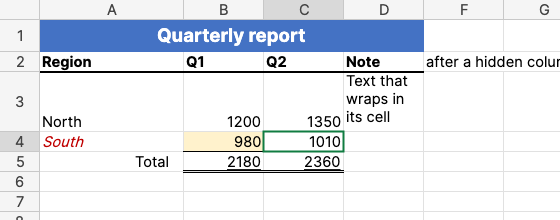
Cell.Style gives the font (name, size, bold, italic, underline, strikethrough, colour), the
fill, the four edges of the border and the alignment. Fills lie over the gridlines, as in Excel.
Wrapped text breaks onto more lines inside its cell; an indent moves text away from the edge it
is aligned to.
Sizes and merged cells
Column widths and row heights come from the sheet, in pixels as Excel converts them: a width is counted in digits of the workbook's default font, so it follows the font the grid measures with. Hidden rows and columns take no space. A merged area shows its top-left cell across the whole area; clicking anywhere in it selects that cell, and the arrow keys step over it as one cell.
Running text
Text wider than its cell runs on over empty neighbours, away from the side it is aligned to: to the right when left-aligned, to the left when right-aligned, both ways when centred. A cell with content, a formula that gives empty text, or a merged area stops it. Numbers, wrapped text and merged cells never run on.
Frozen panes and gridlines
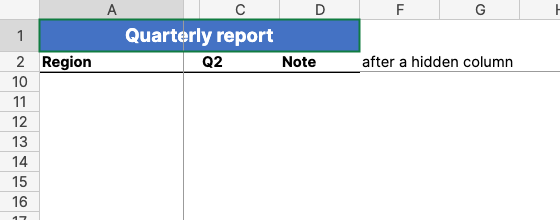
Frozen rows and columns stay in place while the rest scrolls, with a line where they are frozen, as Excel's Freeze Panes. A sheet with gridlines turned off shows none.
Mouse and keyboard
| Input | Result |
|---|---|
| Click on a cell | Selects it alone; inside a merged area, the area |
| Drag | Selects from where the drag started; past an edge of the view it scrolls after the mouse |
| Shift+click | Extends the selection from the active cell |
| Click or drag on column or row headers | Whole columns or rows; the active cell is the first on screen |
| Click on the corner above the row headers | The whole sheet |
| Ctrl+A or Cmd+A, Ctrl+Shift+Space | The data around the active cell, as far as empty rows and columns; pressed again, the whole sheet |
| Arrow keys | Move the active cell one cell, over a merged area as one cell, and select it alone |
| Shift+arrow keys | Extend or shrink the selection at its far corner |
| Ctrl+arrow keys (Cmd on macOS), with Shift to extend | To the edge of the content: the end of a block of filled cells, the next filled cell, or the sheet's edge |
| Home, Ctrl+Home, Ctrl+End | The row's first column, A1, the last used cell |
| Page Down, Page Up | A screen of rows down or up, scrolled with it |
| Ctrl+Space, Shift+Space | Whole columns, whole rows of the selection |
| Enter, Shift+Enter | Down, up; inside a selection, to the next selected cell, column by column |
| Tab, Shift+Tab | Right, left; inside a selection, to the next selected cell, row by row |
| Ctrl+C or Cmd+C | Copies the selected cells |
| Ctrl+X or Cmd+X | Cuts the selected cells: the next paste moves them, formulas and formats with them; Escape forgets the cut |
| Ctrl+V or Cmd+V | Pastes text, such as cells copied from Excel, at the selection's top-left cell; after a cut, moves the cut cells there; cells copied in the grid are copied with their formulas, number formats, styles, hyperlinks and data validation, repeated over a selection that is a multiple of them |
| Escape | Forgets what was copied or cut, and its dashed border |
| Wheel | Three rows a turn |
| Ctrl+wheel or Cmd+wheel | Zooms in or out by 10%, from 10% to 400%; the cell at the top left stays there |
Editing
| Input | Result |
|---|---|
| Typing | Starts editing the active cell with what was typed, replacing its content |
| F2, double-click | Edits the active cell with its formula or value; in the text, the arrows move the caret |
| Enter, Tab (Shift to go back) | Enters the text and moves on, inside a selection to its next cell |
| Arrow keys after typing | Enter the text and move that way |
| Ctrl+Enter | Enters the text into every selected cell |
| Alt+Enter | A line break inside the cell |
| Escape | Leaves the cell as it was |
| Click on a cell, or drag over cells, while typing a formula | Puts their reference in where an operand goes: after =, an operator, ( or a comma. Another click replaces the reference just picked, Shift+click extends it; typing goes on after it |
| Click on another cell | Enters the text and selects that cell |
| Delete | Clears the selected cells' content; formats and styles stay |
| Backspace | Starts editing the active cell empty |
| Ctrl+Z, Ctrl+Y or Ctrl+Shift+Z | Undo, redo, and select the cells changed |
Every shortcut with Ctrl works with Cmd as well, on every platform and in the browser, and in the cell's editor and the formula bar too: Cmd+A, Cmd+C, Cmd+X, Cmd+V, Cmd+Z and Cmd+Shift+Z do in the text what they do in any text box.
What is typed is read as Excel reads it, through SharpCell's Cell.Input: = starts a formula,
' keeps the rest as text, numbers, percentages, currency, dates and times are read in the
workbook's culture, and a cell in the General format takes a format from what was typed (12%
gives 0%). The workbook is recalculated after each change. A formula that does not parse keeps
the editor open, with the reason shown and the caret where it went wrong. Pasted text goes in cell
by cell, each read as typed. IsReadOnly turns all of this off.
FormulaBar is Excel's formula bar as a control of its own: the name box with the active cell's
address, which selects an address or range typed into it, and the cell's formula or value, which
can be edited there as in the cell.
A selection covers every merged area it touches whole. Selected cells but the active one are shaded, a border goes round them, and the headers of their rows and columns are highlighted.
Rows, columns and filling
| Input | Result |
|---|---|
| Drag the edge between column or row headers | Resizes the column or row; with whole columns or rows selected and it among them, all of them. Dragged to nothing, they are hidden |
| Double-click that edge | Fits the column to its widest text, or the row to its tallest, as Excel's AutoFit |
| Drag the fill handle, the square on the selection's corner | Fills the cells it is dragged over: numbers and dates continue their step, text ending in a number counts on, day and month names follow each other, formulas are copied with their references following; dragged back, it clears the cells left out |
| Ctrl+D, Ctrl+R | Copies the selection's top row down or its left column right, formulas following; one row or column takes the one before it |
| Ctrl+Plus, Ctrl+Minus | Inserts as many rows as are selected, or deletes them; columns when whole columns are selected. With cells selected, Excel's Insert or Delete dialog asks how: shift cells right or down (left or up), or entire rows or columns |
| Ctrl+9, Ctrl+Shift+9 | Hides the selected rows, shows the hidden ones among them |
| Ctrl+0, Ctrl+Shift+0 | Hides the selected columns, shows the hidden ones among them |
| Right-click | Excel's menu: Cut, Copy, Paste and Clear Contents; on cells Insert... and Delete..., which open the dialog; on headers Insert, Delete, Hide and Unhide |
The fill handle reads a column filled down, or a row filled right, as Excel does. One number is
repeated; two or more continue the straight line through them, as Excel's trend. A date steps a
day, a time an hour; dates a month or a year apart keep their day, falling back to the end of
shorter months. Text ending in a number counts on with its zeros kept (A007, A008), and day and
month names in the workbook's culture or in English go on in their form and case. Anything else,
formulas among it, repeats. Every filled cell takes the number format, style, hyperlink and data
validation of the cell it continues, so a drop-down list goes down with it. Filling up or left
goes backwards.
Inserted rows take the styles and number formats of the row above, and inserted columns those of
the column on their left, as in Excel; inserted cells take those of the cells above, or on the left.
Cells inserted or deleted with a shift move only the cells beside them, through SharpCell's
CellRange.Insert and CellRange.Delete; cells that would split a merged area, a table or an
array formula are refused, as Excel refuses them. Formulas follow inserted and deleted rows and columns
through SharpCell's InsertRows and DeleteRows: references to deleted cells become #REF!.
Undo gives back deleted rows and columns whole: their cells, styles and sizes, and every formula,
name and merged area as it was. Each resize, fit, fill, insert, delete, hide and unhide is one step
to undo.
Sheets
SheetTabs shows a tab for each sheet of the view's workbook, the shown sheet highlighted, as at
the bottom of Excel's window. Clicking a tab shows its sheet, and + adds a sheet named as Excel names
one (Sheet2, Sheet3...). Ctrl+Page Down and Ctrl+Page Up (Cmd on a Mac) show the next and the
previous sheet, and ShowNextSheet does it in code. Each sheet keeps its selection and scrolling
while another is shown; a sheet not shown before starts at A1. Sheets cannot yet be renamed,
deleted or moved from the tabs: SharpCell does not rename or remove sheets.
Formatting cells
| Input | Result |
|---|---|
| Ctrl+B or Ctrl+2, Ctrl+I or Ctrl+3, Ctrl+U or Ctrl+4, Ctrl+5 | Bold, italic, underline, strikethrough; off for every selected cell when the active cell has it, on otherwise |
| Ctrl+Shift+& (7) | A thin border round the selection |
| Ctrl+Shift+_ (minus) | Takes every border of the selection off |
| Ctrl+Shift+~ ! $ % ^ # @ | General, two decimals with separators, currency, percent, scientific, date, time |
The view's methods do what Excel's Home tab does: ToggleBold, ToggleItalic, ToggleUnderline,
ToggleStrikethrough, SetFill and SetFontColor with a colour (null takes it off), SetBorders
with the edges (BorderEdges.Outside, All, Bottom...) and a CellBorder (null for No Border),
SetNumberFormat with a format code, and Restyle with any change of CellStyle. An application
puts them on its own toolbar. Each is one step to undo. A border on one side of a line takes the
neighbouring cell's edge on the other side off, so the line looks as chosen. Whole rows or columns
change their cells up to the sheet's used range: SharpCell keeps no styles for rows or columns.
XlsxWriter saves the new styles and formats.
Copying to Excel
Copying puts the selected cells on the clipboard in two forms, both read by Excel when it pastes:
- Text, as Excel copies it: a tab between cells, a line break after each row, text with line breaks in quotes. Other applications, such as editors and chat, take this form.
- An HTML table with each cell's font, fill, borders and alignment, and merged areas as one cell. Excel and other spreadsheets paste it with its styles; text stays text, even when it reads as a number.
Cells are copied as shown, in their number format: 1,250.00 rather than 1250, and a formula's
value rather than the formula. Hidden rows and columns are copied. Whole columns or rows end at the
sheet's last used row or column.
Where it differs from Excel
- Fonts the system does not have fall back to another font, so sizes follow the font that is used.
- Double underlines are drawn single; Fill, Justify and Distributed alignment are drawn as left or centred.
- Theme colours with a tint, indent steps and centred text blocked on one side follow the OOXML definitions; they are not yet compared with Excel.
- A merged area across the line of frozen panes is drawn whole from the frozen part.
- The colours of the selection, its shade and its headers are close to Excel's, not measured from it.
- Only one rectangle can be selected (no Ctrl+click). Ctrl+A in a table selects the data around the active cell, not first the table's data and then the table with its headers.
- While a formula is typed, clicked cells give their references, but the arrows do not point at
cells, references to other sheets are typed, and the references in a formula are not coloured.
Formulas get no number format from what they calculate (Excel gives
=TODAY()a date format). - Pasting cells copied in Excel takes the text of the clipboard: values, not their formats or formulas. Cells copied in the grid paste whole.
- Copied and cut cells are outlined with dashes that do not move. Moving cells does not change the formulas that refer to them; styles stay where they were.
- Copying and filling do not copy merged areas.
- The Insert and Delete dialog is a panel over the view, not a window of its own.
- The fill handle has no options menu, Ctrl does not switch between copying and a series, and lists of your own are not known. A row fitted to its text takes 1.32 times the tallest font's size per line, close to Excel's line heights.
- Zoom goes in steps of 10%; the zoom saved in a workbook is not read.
- Copied HTML is not yet checked by pasting it into desktop Excel.
- Not shown: conditional formats, pattern and gradient fills, rotated text, styles of whole rows and columns on empty cells, charts, images and comments.