# SharpCell.Grid
> A free (MIT) Excel-like spreadsheet control for .NET 8 and later, built on the SharpCell formula engine: it shows a worksheet the way Excel does, with number formats, cell styles, column widths, row heights, merged cells, frozen panes and text running on over empty cells. Only the visible cells are read, so any sheet size scrolls smoothly.
Packages: `SharpCell.Grid` (geometry, hit testing and painting, no UI framework), `SharpCell.Grid.Avalonia` (`SpreadsheetView`, the Avalonia control) and `SharpCell.Grid.Wpf` (`SpreadsheetView` for WPF, Windows only). Namespaces: `SharpCell.Grid`, `SharpCell.Grid.Avalonia`, `SharpCell.Grid.Wpf`; workbooks come from `SharpCell` and `SharpCell.Xlsx`. The view reads cells when it paints: after changing cells or recalculating, call `InvalidateVisual()`; after changing sizes or frozen panes, call `ReloadLayout()`. Cells are selected, copied and edited as in Excel (`Selection`, `CopyAsync()`, `BeginEdit()`, `Editor`, `Edited`, `IsReadOnly`, `FormulaBar`; without a UI framework `GridSelection`, `GridClipboard`, `GridEditor`); what is typed is read by SharpCell's `Cell.Input`.
---
# SharpCell.Grid
A free (MIT) Excel-like spreadsheet control for .NET 8 and later, built on the
[SharpCell](https://ifmelate.github.io/SharpCell/) formula engine. It shows a worksheet the way
Excel does: each cell's value in its number format and its style, the file's column widths and
row heights, merged cells, frozen panes and text running on over empty cells.
**[Try it in your browser](https://ifmelate.github.io/SharpCell.Grid/demo/)**: open your own .xlsx file; it is read on your computer and never uploaded.
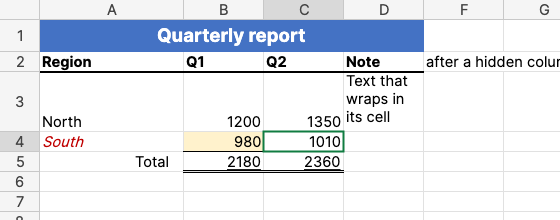
| Package | What it does |
|---|---|
| `SharpCell.Grid` | Geometry, hit testing, scrolling and painting, with no UI framework. |
| `SharpCell.Grid.Avalonia` | `SpreadsheetView`, the control for [Avalonia UI](https://avaloniaui.net). Brings `SharpCell.Grid` with it. |
| `SharpCell.Grid.Wpf` | `SpreadsheetView`, the same control for WPF on Windows. Brings `SharpCell.Grid` with it. |
Namespaces: `SharpCell`, `SharpCell.Xlsx` and `SharpCell.Grid.Avalonia`.
```csharp snippet=show-workbook
Workbook workbook = XlsxReader.Load(path);
workbook.Recalculate();
var view = new SpreadsheetView { Worksheet = workbook["Budget"] };
```
Only the visible cells are read when the grid paints, so a sheet of a million rows scrolls like
an empty one. What a cell shows comes from SharpCell: `Cell.Text` for the value through its number
format, `Cell.Style` for the font, fill, borders and alignment. Both are checked against Microsoft
Excel.
Status: 0.x, viewing, selecting, copying, editing, the fill handle, rows and columns resized,
inserted and deleted, and zoom, in Avalonia and WPF; see the
[roadmap](roadmap.md). The API may change between minor versions until 1.0.
- [Getting started](getting-started.md)
- [What the grid shows](guides/showing-workbooks.md)
- [Painting in other UI frameworks](guides/painting.md)
- [API reference](api/index.md)
---
# Getting started
## Install
```bash
dotnet add package SharpCell.Grid.Avalonia # the control; brings SharpCell.Grid and SharpCell
dotnet add package SharpCell.Xlsx # to read .xlsx files
```
The packages target .NET 8 and .NET 10 and Avalonia 12. For WPF, see [WPF](#wpf) below.
## Show a workbook
```csharp snippet=show-workbook
Workbook workbook = XlsxReader.Load(path);
workbook.Recalculate();
var view = new SpreadsheetView { Worksheet = workbook["Budget"] };
```
`SpreadsheetView` is an Avalonia control: put it in a window or any panel, and it takes the space
it is given. `XlsxReader.Load` reads values, formulas, the results Excel saved, number formats,
styles and the sheet's sizes; `Recalculate` calculates every formula with SharpCell.
A runnable window is in [samples/SharpCell.Grid.Sample](../samples/SharpCell.Grid.Sample):
```bash
dotnet run --project samples/SharpCell.Grid.Sample -f net10.0 -- path/to/file.xlsx
```
## After changes
```csharp snippet=refresh
sheet["B2"].Value = 99;
workbook.Recalculate();
view.InvalidateVisual(); // values, formulas and styles show at the next paint
sheet.SetColumnWidth(2, 20);
sheet.FrozenRows = 1;
view.ReloadLayout(); // sizes and frozen panes are taken again
```
The view reads cells each time it paints, but it does not know when a workbook changes. Column
widths, row heights, hidden rows and columns and frozen panes are taken when `Worksheet` is set,
and again with `ReloadLayout`.
## WPF
```bash
dotnet add package SharpCell.Grid.Wpf # the WPF control; brings SharpCell.Grid and SharpCell
dotnet add package SharpCell.Xlsx
```
`SharpCell.Grid.Wpf` has the same `SpreadsheetView`, as a WPF `FrameworkElement` in the namespace
`SharpCell.Grid.Wpf`, for `net8.0-windows` and `net10.0-windows`. In XAML:
```xml
```
```csharp snippet=show-workbook-wpf
Workbook workbook = XlsxReader.Load(path);
workbook.Recalculate();
View.Worksheet = workbook.Sheets[0]; // View: in MainWindow.xaml
```
It shows, selects and copies as the Avalonia control does, and has the same properties: `Worksheet`,
`Selection`, `ActiveCell`, `Offset` (dependency properties), `Painter`, `ReloadLayout()`; copying
is `Copy()`, also bound to `ApplicationCommands.Copy`, and Ctrl+A to `ApplicationCommands.SelectAll`.
A runnable window is in [samples/SharpCell.Grid.WpfSample](../samples/SharpCell.Grid.WpfSample).
## Editing
```csharp snippet=editing
var bar = new FormulaBar { View = view }; // Excel's formula bar, as a control of its own
view.Edited += (_, edit) => // after each change, the workbook recalculated
changed = edit.Recalculation.ChangedCells;
view.IsReadOnly = true; // to only show and select
```
Cells are edited as in Excel: typing into a cell, F2 or a double-click, Enter, Tab and Escape,
Delete, paste with Ctrl+V, undo and redo. What is typed is read as Excel reads it, in the
workbook's culture, and the workbook is recalculated after each change. `view.Editor` is the
`GridEditor` behind it, with the history to undo; `view.Edited` tells about each change.
`FormulaBar` shows and edits the active cell's formula above the grid. See
[What the grid shows](guides/showing-workbooks.md#editing) for every key.
## Sheets and formatting
```csharp snippet=sheets-and-formatting
var tabs = new SheetTabs { View = view }; // Excel's sheet tabs, under the view
view.ToggleBold(); // as Ctrl+B
view.SetFill(CellColor.FromRgb(0xFFF2CC)); // as Fill Color
view.SetNumberFormat("0.0%"); // as the Number Format box
view.ShowNextSheet(); // as Ctrl+Page Down: the next sheet
```
`SheetTabs` is Excel's row of sheet tabs as a control of its own: clicking a tab shows its sheet,
and + adds one; Ctrl+Page Down and Ctrl+Page Up go through the sheets too, and each sheet keeps its
selection. The view's formatting methods (`ToggleBold`, `SetFill`, `SetBorders`, `SetNumberFormat`
and the others) do what Excel's Home tab does to the selected cells, for an application's toolbar,
and Excel's shortcuts such as Ctrl+B and Ctrl+Shift+% do the same. See
[What the grid shows](guides/showing-workbooks.md#formatting-cells) for every key.
## Rows, columns, filling and zoom
```csharp snippet=sheet-commands
view.Zoom = 1.5; // 150%, as Ctrl or Cmd with the wheel
view.Editor!.Fill(sheet, new CellArea(1, 1, 2, 1), new CellArea(1, 1, 5, 1)); // as the fill handle: 1 to 5
view.InsertRows(); // a row before the selected one, A2, as Ctrl+Plus
view.FillDown(); // the row above copied into it, as Ctrl+D
```
Columns and rows are resized by dragging the edges of their headers and fitted to their content
by double-clicking them. The fill handle on the selection's corner continues series and copies
formulas, right-clicking a header gives Excel's menu to insert, delete, hide and unhide, and the
view zooms from 10% to 400%. Each change is a step to undo. Widths, heights and hidden rows and
columns are the worksheet's own, so `XlsxWriter` saves them. See
[What the grid shows](guides/showing-workbooks.md#rows-columns-and-filling) for every key.
## Selection, copying and scrolling
```csharp snippet=active-cell
view.ActiveCell = new CellPosition(row: 10, column: 3); // C10, selected alone
view.Selection = view.Selection!.Extend(rows: 2, columns: 1, sheet); // C10:D12, as Shift with the arrows
view.Offset = new Vector(0, 200); // scrolled ten default rows down
await view.CopyAsync(); // as Ctrl+C
```
`ActiveCell`, `Selection` and `Offset` are Avalonia properties, so they can be bound. The active
cell is the selection's; setting it selects that cell alone. Cells are selected with the mouse and
keyboard as in Excel, and copying puts them on the clipboard as text and as an HTML table, which
Excel pastes with their styles. The wheel scrolls three rows a turn.
---
# What the grid shows
What a cell shows comes from SharpCell, and how the sheet is laid out follows Excel at 100% zoom.
## Values and number formats
Each cell shows `Cell.Text`: the value through its number format, with the workbook's culture.
Excel's General alignment puts numbers and dates on the right, text on the left, logical values
and errors in the middle.
A number too wide for its column is shortened as Excel does it: a number in the General format
loses decimals, rounding, or digits of its scientific notation; any other number shows `#` across
the cell. Text is never shortened.
## Styles

`Cell.Style` gives the font (name, size, bold, italic, underline, strikethrough, colour), the
fill, the four edges of the border and the alignment. Fills lie over the gridlines, as in Excel.
Wrapped text breaks onto more lines inside its cell; an indent moves text away from the edge it
is aligned to.
## Sizes and merged cells
Column widths and row heights come from the sheet, in pixels as Excel converts them: a width is
counted in digits of the workbook's default font, so it follows the font the grid measures with.
Hidden rows and columns take no space. A merged area shows its top-left cell across the whole
area; clicking anywhere in it selects that cell, and the arrow keys step over it as one cell.
## Running text
Text wider than its cell runs on over empty neighbours, away from the side it is aligned to: to
the right when left-aligned, to the left when right-aligned, both ways when centred. A cell with
content, a formula that gives empty text, or a merged area stops it. Numbers, wrapped text and
merged cells never run on.
## Frozen panes and gridlines

Frozen rows and columns stay in place while the rest scrolls, with a line where they are frozen,
as Excel's Freeze Panes. A sheet with gridlines turned off shows none.
## Mouse and keyboard
| Input | Result |
|---|---|
| Click on a cell | Selects it alone; inside a merged area, the area |
| Drag | Selects from where the drag started; past an edge of the view it scrolls after the mouse |
| Shift+click | Extends the selection from the active cell |
| Click or drag on column or row headers | Whole columns or rows; the active cell is the first on screen |
| Click on the corner above the row headers | The whole sheet |
| Ctrl+A or Cmd+A, Ctrl+Shift+Space | The data around the active cell, as far as empty rows and columns; pressed again, the whole sheet |
| Arrow keys | Move the active cell one cell, over a merged area as one cell, and select it alone |
| Shift+arrow keys | Extend or shrink the selection at its far corner |
| Ctrl+arrow keys (Cmd on macOS), with Shift to extend | To the edge of the content: the end of a block of filled cells, the next filled cell, or the sheet's edge |
| Home, Ctrl+Home, Ctrl+End | The row's first column, A1, the last used cell |
| Page Down, Page Up | A screen of rows down or up, scrolled with it |
| Ctrl+Space, Shift+Space | Whole columns, whole rows of the selection |
| Enter, Shift+Enter | Down, up; inside a selection, to the next selected cell, column by column |
| Tab, Shift+Tab | Right, left; inside a selection, to the next selected cell, row by row |
| Ctrl+C or Cmd+C | Copies the selected cells |
| Ctrl+X or Cmd+X | Cuts the selected cells: the next paste moves them, formulas and formats with them; Escape forgets the cut |
| Ctrl+V or Cmd+V | Pastes text, such as cells copied from Excel, at the selection's top-left cell; after a cut, moves the cut cells there; cells copied in the grid are copied with their formulas, number formats, styles, hyperlinks and data validation, repeated over a selection that is a multiple of them |
| Escape | Forgets what was copied or cut, and its dashed border |
| Wheel | Three rows a turn |
| Ctrl+wheel or Cmd+wheel | Zooms in or out by 10%, from 10% to 400%; the cell at the top left stays there |
## Editing
| Input | Result |
|---|---|
| Typing | Starts editing the active cell with what was typed, replacing its content |
| F2, double-click | Edits the active cell with its formula or value; in the text, the arrows move the caret |
| Enter, Tab (Shift to go back) | Enters the text and moves on, inside a selection to its next cell |
| Arrow keys after typing | Enter the text and move that way |
| Ctrl+Enter | Enters the text into every selected cell |
| Alt+Enter | A line break inside the cell |
| Escape | Leaves the cell as it was |
| Click on a cell, or drag over cells, while typing a formula | Puts their reference in where an operand goes: after `=`, an operator, `(` or a comma. Another click replaces the reference just picked, Shift+click extends it; typing goes on after it |
| Click on another cell | Enters the text and selects that cell |
| Delete | Clears the selected cells' content; formats and styles stay |
| Backspace | Starts editing the active cell empty |
| Ctrl+Z, Ctrl+Y or Ctrl+Shift+Z | Undo, redo, and select the cells changed |
Every shortcut with Ctrl works with Cmd as well, on every platform and in the browser, and in the
cell's editor and the formula bar too: Cmd+A, Cmd+C, Cmd+X, Cmd+V, Cmd+Z and Cmd+Shift+Z do in the
text what they do in any text box.
What is typed is read as Excel reads it, through SharpCell's `Cell.Input`: `=` starts a formula,
`'` keeps the rest as text, numbers, percentages, currency, dates and times are read in the
workbook's culture, and a cell in the General format takes a format from what was typed (`12%`
gives `0%`). The workbook is recalculated after each change. A formula that does not parse keeps
the editor open, with the reason shown and the caret where it went wrong. Pasted text goes in cell
by cell, each read as typed. `IsReadOnly` turns all of this off.
`FormulaBar` is Excel's formula bar as a control of its own: the name box with the active cell's
address, which selects an address or range typed into it, and the cell's formula or value, which
can be edited there as in the cell.
A selection covers every merged area it touches whole. Selected cells but the active one are
shaded, a border goes round them, and the headers of their rows and columns are highlighted.
## Rows, columns and filling
| Input | Result |
|---|---|
| Drag the edge between column or row headers | Resizes the column or row; with whole columns or rows selected and it among them, all of them. Dragged to nothing, they are hidden |
| Double-click that edge | Fits the column to its widest text, or the row to its tallest, as Excel's AutoFit |
| Drag the fill handle, the square on the selection's corner | Fills the cells it is dragged over: numbers and dates continue their step, text ending in a number counts on, day and month names follow each other, formulas are copied with their references following; dragged back, it clears the cells left out |
| Ctrl+D, Ctrl+R | Copies the selection's top row down or its left column right, formulas following; one row or column takes the one before it |
| Ctrl+Plus, Ctrl+Minus | Inserts as many rows as are selected, or deletes them; columns when whole columns are selected. With cells selected, Excel's Insert or Delete dialog asks how: shift cells right or down (left or up), or entire rows or columns |
| Ctrl+9, Ctrl+Shift+9 | Hides the selected rows, shows the hidden ones among them |
| Ctrl+0, Ctrl+Shift+0 | Hides the selected columns, shows the hidden ones among them |
| Right-click | Excel's menu: Cut, Copy, Paste and Clear Contents; on cells Insert... and Delete..., which open the dialog; on headers Insert, Delete, Hide and Unhide |
The fill handle reads a column filled down, or a row filled right, as Excel does. One number is
repeated; two or more continue the straight line through them, as Excel's trend. A date steps a
day, a time an hour; dates a month or a year apart keep their day, falling back to the end of
shorter months. Text ending in a number counts on with its zeros kept (`A007`, `A008`), and day and
month names in the workbook's culture or in English go on in their form and case. Anything else,
formulas among it, repeats. Every filled cell takes the number format, style, hyperlink and data
validation of the cell it continues, so a drop-down list goes down with it. Filling up or left
goes backwards.
Inserted rows take the styles and number formats of the row above, and inserted columns those of
the column on their left, as in Excel; inserted cells take those of the cells above, or on the left.
Cells inserted or deleted with a shift move only the cells beside them, through SharpCell's
`CellRange.Insert` and `CellRange.Delete`; cells that would split a merged area, a table or an
array formula are refused, as Excel refuses them. Formulas follow inserted and deleted rows and columns
through SharpCell's `InsertRows` and `DeleteRows`: references to deleted cells become `#REF!`.
Undo gives back deleted rows and columns whole: their cells, styles and sizes, and every formula,
name and merged area as it was. Each resize, fit, fill, insert, delete, hide and unhide is one step
to undo.
## Sheets
`SheetTabs` shows a tab for each sheet of the view's workbook, the shown sheet highlighted, as at
the bottom of Excel's window. Clicking a tab shows its sheet, and + adds a sheet named as Excel names
one (`Sheet2`, `Sheet3`...). Ctrl+Page Down and Ctrl+Page Up (Cmd on a Mac) show the next and the
previous sheet, and `ShowNextSheet` does it in code. Each sheet keeps its selection and scrolling
while another is shown; a sheet not shown before starts at A1. Sheets cannot yet be renamed,
deleted or moved from the tabs: SharpCell does not rename or remove sheets.
## Formatting cells
| Input | Result |
|---|---|
| Ctrl+B or Ctrl+2, Ctrl+I or Ctrl+3, Ctrl+U or Ctrl+4, Ctrl+5 | Bold, italic, underline, strikethrough; off for every selected cell when the active cell has it, on otherwise |
| Ctrl+Shift+& (7) | A thin border round the selection |
| Ctrl+Shift+_ (minus) | Takes every border of the selection off |
| Ctrl+Shift+~ ! $ % ^ # @ | General, two decimals with separators, currency, percent, scientific, date, time |
The view's methods do what Excel's Home tab does: `ToggleBold`, `ToggleItalic`, `ToggleUnderline`,
`ToggleStrikethrough`, `SetFill` and `SetFontColor` with a colour (null takes it off), `SetBorders`
with the edges (`BorderEdges.Outside`, `All`, `Bottom`...) and a `CellBorder` (null for No Border),
`SetNumberFormat` with a format code, and `Restyle` with any change of `CellStyle`. An application
puts them on its own toolbar. Each is one step to undo. A border on one side of a line takes the
neighbouring cell's edge on the other side off, so the line looks as chosen. Whole rows or columns
change their cells up to the sheet's used range: SharpCell keeps no styles for rows or columns.
`XlsxWriter` saves the new styles and formats.
## Copying to Excel
Copying puts the selected cells on the clipboard in two forms, both read by Excel when it pastes:
- Text, as Excel copies it: a tab between cells, a line break after each row, text with line
breaks in quotes. Other applications, such as editors and chat, take this form.
- An HTML table with each cell's font, fill, borders and alignment, and merged areas as one cell.
Excel and other spreadsheets paste it with its styles; text stays text, even when it reads as a
number.
Cells are copied as shown, in their number format: `1,250.00` rather than `1250`, and a formula's
value rather than the formula. Hidden rows and columns are copied. Whole columns or rows end at the
sheet's last used row or column.
## Where it differs from Excel
- Fonts the system does not have fall back to another font, so sizes follow the font that is used.
- Double underlines are drawn single; Fill, Justify and Distributed alignment are drawn as left or centred.
- Theme colours with a tint, indent steps and centred text blocked on one side follow the OOXML
definitions; they are not yet compared with Excel.
- A merged area across the line of frozen panes is drawn whole from the frozen part.
- The colours of the selection, its shade and its headers are close to Excel's, not measured from it.
- Only one rectangle can be selected (no Ctrl+click). Ctrl+A in a table selects the data around the
active cell, not first the table's data and then the table with its headers.
- While a formula is typed, clicked cells give their references, but the arrows do not point at
cells, references to other sheets are typed, and the references in a formula are not coloured.
Formulas get no number format from what they calculate (Excel gives `=TODAY()` a date format).
- Pasting cells copied in Excel takes the text of the clipboard: values, not their formats or
formulas. Cells copied in the grid paste whole.
- Copied and cut cells are outlined with dashes that do not move. Moving cells does not change
the formulas that refer to them; styles stay where they were.
- Copying and filling do not copy merged areas.
- The Insert and Delete dialog is a panel over the view, not a window of its own.
- The fill handle has no options menu, Ctrl does not switch between copying and a series, and lists
of your own are not known. A row fitted to its text takes 1.32 times the tallest font's size per
line, close to Excel's line heights.
- Zoom goes in steps of 10%; the zoom saved in a workbook is not read.
- Copied HTML is not yet checked by pasting it into desktop Excel.
- Not shown: conditional formats, pattern and gradient fills, rotated text, styles of whole rows
and columns on empty cells, charts, images and comments.
---
# Painting in other UI frameworks
`SharpCell.Grid` holds everything about the grid that is not Avalonia or WPF: sizes and positions,
hit testing, selection, copying, scrolling and painting. The two `SpreadsheetView` controls are
thin hosts over it, and a host for another UI framework is the same few calls.
```csharp snippet=painter
var painter = new GridPainter
{
// Text width in your UI framework's font engine, for fitting numbers and running text.
MeasureText = (text, font) => text.Length * font.Size * 0.5,
};
painter.Layout = SheetLayout.FromWorksheet(sheet, painter.MaxDigitWidth(sheet));
painter.FrozenRows = sheet.FrozenRows;
painter.FrozenColumns = sheet.FrozenColumns;
var viewport = new GridViewport(OffsetX: 0, OffsetY: 0, Width: 800, Height: 600);
var selection = GridSelection.Cell(new CellPosition(1, 1), sheet);
painter.Paint(canvas, sheet, viewport, selection); // canvas: your IGridCanvas
// A click, then a drag to (300, 90): what Excel selects, and what is copied.
if (painter.Hit(viewport, x: 120, y: 30, sheet) is { } hit)
selection = GridSelection.At(hit, sheet).ExtendTo(painter.CellNearest(viewport, 300, 90), sheet);
string copied = GridClipboard.Text(sheet, selection.Area);
```
## The parts
- `SheetLayout` holds the column widths and row heights in pixels, their offsets, the cell under
an offset and the cells in a rectangle. `SheetLayout.FromWorksheet` converts a sheet's sizes as
Excel does, from the width of the widest digit of the default font.
- `GridViewport` is what is shown: the scroll offset into the sheet and the size of the grid on
screen, headers included.
- `GridPainter` paints the part of the sheet in a viewport and the selection onto an `IGridCanvas`,
and answers where a cell is (`CellBounds`), what is under a point (`HitTest` for cells, `Hit`
for headers and the corner too), which cell a drag has reached (`CellNearest`, past the edges the
next one out of view), and where to scroll (`ScrollIntoView`, `Clamp`).
- `GridSelection` is Excel's selection: what a click selects (`At`), and each step of the mouse
and keyboard (`ExtendTo`, `Extend`, `Move`, `MoveWithin`, `EntireColumns`, `EntireRows`). A host
maps its input events to these calls; `SpreadsheetView` shows how.
- `GridEditor` changes cells as Excel does when people edit them, typing (`Enter`, through
SharpCell's `Cell.Input`), Delete (`Clear`) and pasting text (`Paste`), each change one step to
`Undo` and `Redo`, the workbook recalculated after it.
- `GridClipboard` gives the selected cells as text and as HTML, the forms Excel pastes, and
`WindowsHtml` wraps the HTML in the clipboard format Windows applications read.
- `IGridCanvas` is what a host implements over its drawing API: fill and stroke rectangles, draw
lines with a dash pattern, draw text inside bounds, cut off at them, on one line or wrapped.
## Measuring text
`GridPainter.MeasureText` gives the width of text in a font, from the host's font engine. With it,
numbers are fitted to their column, text runs on over empty cells, and row headers widen for long
row numbers. Without it, nothing is fitted and Calibri 11's digit width (7 pixels) is assumed.
`GridFont` sizes are in device-independent pixels: 11 points are 14.67 pixels at 96 DPI.
`GridPainter.FontOf` converts a SharpCell font.
---
# Roadmap
Where SharpCell.Grid is going, in the order the work is planned. Each step ships when its tests
pass and what it shows is checked against Microsoft Excel. Dates are not promised; the project
has one maintainer.
## Released: 0.1 — a faithful viewer
A workbook from Excel looks the same in the grid as in Excel at 100% zoom.
| Step | What | Needs from SharpCell |
|---|---|---|
| Done | Headers, gridlines, `Cell.Text`, General alignment, active cell, mouse, arrows, Enter/Tab, wheel, numbers fitted to their column, row headers widened for long numbers | `Cell.Text` (0.5.0) |
| Done | Cell styles: fonts (name, size, bold, italic, underline, strikethrough, colour), solid fills, borders, horizontal and vertical alignment, wrapped text, indent | `Cell.Style`, theme and indexed colours resolved (0.6.0) |
| Done | Sheet geometry from the file: column widths, row heights, hidden columns and rows | `Worksheet` column widths, row heights, hidden columns (0.6.0) |
| Done | Merged cells, painted and navigated as one cell | `Worksheet.MergedAreas` (0.6.0) |
| Done | Text running on over empty neighbours, by its alignment, also from cells out of view | — |
| Done | Frozen panes and the sheet's gridline setting | `Worksheet.FrozenRows`, `FrozenColumns`, `ShowGridlines` (0.6.0) |
| Done | A live demo in the browser through WebAssembly, on the documentation site | — |
| Released | 0.1.0 on NuGet: `SharpCell.Grid`, `SharpCell.Grid.Avalonia` | SharpCell 0.6.0 |
## Released: 0.2 — selection and WPF
| Step | What | Needs from SharpCell |
|---|---|---|
| Done | Range selection: the mouse with dragging and Shift, Shift with the arrows, whole columns and rows from their headers and with Ctrl+Space and Shift+Space, the whole sheet; Enter and Tab inside a selection | — |
| Done | Copy as tab-separated text and as HTML with styles, values as shown | — |
| Done | A WPF control over the same painter: `SharpCell.Grid.Wpf`, tested on Windows in CI | — |
## Released: 0.3 — editing
| Step | What | Needs from SharpCell |
|---|---|---|
| Done | Typing into a cell, F2 and double-click, Enter, Tab, Escape, arrows, Ctrl+Enter, Alt+Enter; `IsReadOnly` | — |
| Done | Input read as Excel reads it: numbers, percentages, currency, dates and times in the workbook's culture, `=` for formulas, `'` for text, the number format a General cell takes | `Cell.Input` (0.8.0) |
| Done | Recalculation after each edit, with the cells it changed (`Edited`) | `RecalculationResult.ChangedCells` (0.5.0) |
| Done | Undo and redo, Delete, paste of text copied from Excel | — |
| Done | The formula bar as a control of its own, with the name box | — |
| Done | Ctrl with the arrows, Home, Ctrl+Home, Ctrl+End, Page Up and Page Down | — |
## Released: 0.4 — working like Excel
| Step | What | Needs from SharpCell |
|---|---|---|
| Done | Columns and rows resized by dragging the edges of their headers, fitted by double-clicking them, hidden by dragging them to nothing | — |
| Done | Rows and columns inserted and deleted, formulas following, with Ctrl+Plus, Ctrl+Minus and the headers' menu; undo gives deleted ones back whole | `Worksheet.InsertRows` and friends (0.7.0) |
| Done | The fill handle for series and copied formulas; Ctrl+D and Ctrl+R; cells copied in the grid paste with their formulas | `CellRange.CopyTo` (0.10.0) |
| Done | Hiding and unhiding rows and columns, Ctrl+9 and Ctrl+0 | — |
| Done | Zoom from 10% to 400%, Ctrl or Cmd with the wheel | — |
| Done | Widths, heights and hidden rows and columns set in the grid are the worksheet's own, so `XlsxWriter` saves them | `XlsxWriter` (0.7.0) |
## Now: 0.5 — formatting and sheets
| Step | What | Needs from SharpCell |
|---|---|---|
| Done | Ctrl+A on the data around the active cell first, then the sheet; references picked with the mouse while typing a formula | — |
| Done | Inserting and deleting cells that shift the others right or down, with Excel's dialog | `CellRange.Insert`, `CellRange.Delete` (0.11.0) |
| Done | Changing styles in the grid: bold, italic, underline, fills, font colours, borders and number formats, with Excel's shortcuts | — |
| Done | More than one sheet in a view, with tabs: switching, adding, Ctrl+Page Up and Ctrl+Page Down; each sheet keeps its selection | — |
## Later
- Renaming, deleting and moving sheets from the tabs: SharpCell does not yet rename or remove sheets.
- While typing a formula: the arrows pointing at cells, references to other sheets picked from the
tabs, and each reference in a colour of its own.
## Quality, all along
- **Oracle for geometry and display:** desktop Excel exports `Range.Text`, `Left`, `Top`,
`Width` and `Height` and `Range.Interior.Color` for test workbooks through SharpCell's
`tools/excel-oracle`; the grid's numbers are compared with them. To be checked this way:
the General shortening in narrow columns, theme colours with tints, indent steps and how
centred text runs on when one side is blocked.
- **Snapshots** of rendered frames for every visible feature.
- **Benchmarks:** scrolling a million-row sheet, painting a full screen of styled cells.
- **NativeAOT and trimming** proved by a published smoke test, as in SharpCell.
- **Documentation site** with tested code snippets and `llms.txt`, as in SharpCell.
## Not planned
Charts, pivot tables, conditional formatting, data validation lists, comments, images and
macros. A workbook with them shows its cells; the rest is not drawn.
---
# For AI coding agents
The documentation is published for agents as plain text:
- [llms.txt](https://ifmelate.github.io/SharpCell.Grid/llms.txt): an index of the pages with one line each.
- [llms-full.txt](https://ifmelate.github.io/SharpCell.Grid/llms-full.txt): all guides and the API reference in one file.
Every page of the site also has its Markdown source next to it.
## Rules to paste into an agent's instructions
```text
SharpCell.Grid shows SharpCell worksheets in Avalonia (SharpCell.Grid.Avalonia) or WPF (SharpCell.Grid.Wpf): new SpreadsheetView { Worksheet = sheet }.
The view reads cells when it paints: after changing cells or recalculating, call view.InvalidateVisual().
Sizes, hidden rows and columns and frozen panes are taken when Worksheet is set: after changing them, call view.ReloadLayout().
Rows and columns are numbered from 1: new CellPosition(row, column).
What a cell shows is SharpCell's Cell.Text and Cell.Style; change the workbook, not the view.
The selection is view.Selection, a GridSelection; view.ActiveCell is its active cell, and setting it selects that cell alone.
Copying (Avalonia: await view.CopyAsync(); WPF: view.Copy()) puts text and HTML for Excel on the clipboard; GridClipboard gives the same without a view.
People edit cells in the view as in Excel; set view.IsReadOnly = true to only show them. Each change is recalculated and raises view.Edited (a GridEdit with the cells changed and Recalculation.ChangedCells).
To change cells from code as typing does, set SharpCell's cell.Input, or use view.Editor (GridEditor) so the change can be undone.
For another UI framework, implement IGridCanvas and call GridPainter.Paint, Hit, CellNearest and ScrollIntoView, with GridSelection for the input.
```
---
# BorderEdges
```csharp
public enum BorderEdges
```
Namespace `SharpCell.Grid` · package `SharpCell.Grid`
Which edges of an area's cells a border goes on, as in Excel's Borders menu.
## Values
| Name | Value | Description |
|---|---|---|
| `None` | 0 | No edge. |
| `Left` | 1 | The left edge of the area. |
| `Right` | 2 | The right edge of the area. |
| `Top` | 4 | The top edge of the area. |
| `Bottom` | 8 | The bottom edge of the area. |
| `Outside` | 15 | Round the area: Excel's Outside Borders. |
| `InsideVertical` | 16 | The edges between the area's columns. |
| `InsideHorizontal` | 32 | The edges between the area's rows. |
| `Inside` | 48 | Between the cells inside the area. |
| `All` | 63 | Every edge of every cell: Excel's All Borders. |
---
# CellArea
```csharp
public readonly struct CellArea
```
Namespace `SharpCell.Grid` · package `SharpCell.Grid`
A rectangle of cells, from its top-left to its bottom-right cell; rows and columns from 1.
## Constructors
### CellArea(int, int, int, int)
```csharp
public CellArea(int FirstRow, int FirstColumn, int LastRow, int LastColumn)
```
A rectangle of cells, from its top-left to its bottom-right cell; rows and columns from 1.
**Parameters**
- `FirstRow`: The top row.
- `FirstColumn`: The left column.
- `LastRow`: The bottom row.
- `LastColumn`: The right column.
## Properties
### FirstColumn
```csharp
public int FirstColumn { get; init; }
```
The left column.
### FirstRow
```csharp
public int FirstRow { get; init; }
```
The top row.
### LastColumn
```csharp
public int LastColumn { get; init; }
```
The right column.
### LastRow
```csharp
public int LastRow { get; init; }
```
The bottom row.
## Methods
### Contains(int, int)
```csharp
public bool Contains(int row, int column)
```
Whether the cell is inside the area.
---
# CellPosition
```csharp
public readonly struct CellPosition
```
Namespace `SharpCell.Grid` · package `SharpCell.Grid`
A cell of the sheet by 1-based row and column, such as the active cell.
## Constructors
### CellPosition(int, int)
```csharp
public CellPosition(int row, int column)
```
A position inside the sheet.
**Exceptions**
- `ArgumentOutOfRangeException`: The row or column is outside the sheet.
## Properties
### Column
```csharp
public int Column { get; }
```
The column, from 1.
### Row
```csharp
public int Row { get; }
```
The row, from 1.
## Methods
### ToString()
```csharp
public override string ToString()
```
The A1 address, such as `B3`.
---
# FormulaPointing
```csharp
public static class FormulaPointing
```
Namespace `SharpCell.Grid` · package `SharpCell.Grid`
Picking references with the mouse while a formula is typed, as in Excel: where the caret takes one, and how a picked cell or range is written.
## Methods
### CanPoint(string, int)
```csharp
public static bool CanPoint(string text, int caret)
```
Whether a click on a cell puts a reference at the caret rather than entering the text: the text is a formula and the caret, past any spaces, follows `=`, an opening bracket, a comma or an operator, outside quoted text.
**Parameters**
- `text`: The text being typed.
- `caret`: Where the caret is, from 0.
### Reference(CellArea, Worksheet, Worksheet)
```csharp
public static string Reference(CellArea area, Worksheet? sheet, Worksheet? formulaSheet)
```
The reference a formula takes for cells picked on a sheet: `B3`, `B3:C5`, whole columns `C:D` or rows `2:2`, with the sheet's name in front when they are on another sheet than the formula's.
**Parameters**
- `area`: The cells picked.
- `sheet`: The sheet they are on.
- `formulaSheet`: The sheet of the cell being edited.
---
# GridClipboard
```csharp
public static class GridClipboard
```
Namespace `SharpCell.Grid` · package `SharpCell.Grid`
What copying cells puts on the clipboard, in the forms Excel reads when it pastes, and the cells of text pasted from it. Copied are text with tabs between cells, and an HTML table that keeps fonts, fills, borders, alignment and merged cells. Cells are copied as shown, `Cell.Text` in their number format. Hidden rows and columns are copied, as Excel copies them. Whole columns or rows end at the sheet's used range.
## Methods
### Html(Worksheet, CellArea)
```csharp
public static string Html(Worksheet sheet, CellArea area)
```
The cells as an HTML document with one table, whose cells carry their style inline and merged areas as `colspan` and `rowspan`; the table lies between the `` and `` comments. On macOS and Linux it goes on the clipboard as it is; Windows needs it wrapped by [GridClipboard.WindowsHtml](SharpCell.Grid.GridClipboard.md#windowshtml-string).
### ReadText(string)
```csharp
public static IReadOnlyList> ReadText(string text)
```
Text from the clipboard as rows of cells, the way Excel reads text it pastes: a tab between cells, a line break (`\r\n` or `\n`) between rows, the last line break ending the last row. A cell starting with a double quote runs to the closing one and may hold tabs and line breaks; two double quotes inside stand for one.
### Text(Worksheet, CellArea)
```csharp
public static string Text(Worksheet sheet, CellArea area)
```
The cells as text, as Excel puts them on the clipboard: a tab between cells, a line break after each row, the last one too. Text with a line break or a tab is put in double quotes, with any quote inside doubled.
### WindowsHtml(string)
```csharp
public static string WindowsHtml(string html)
```
HTML in the clipboard format Windows applications read, `HTML Format`: a header giving where the document and its fragment start and end, as byte offsets into its UTF-8 encoding, then the document. Put it on the clipboard as UTF-8 bytes.
**Exceptions**
- `ArgumentException`: The document has no `` and `` comments.
---
# GridColor
```csharp
public readonly struct GridColor
```
Namespace `SharpCell.Grid` · package `SharpCell.Grid`
An opaque or translucent sRGB colour.
## Constructors
### GridColor(byte, byte, byte, byte)
```csharp
public GridColor(byte R, byte G, byte B, byte A = 255)
```
An opaque or translucent sRGB colour.
**Parameters**
- `R`: Red, 0 to 255.
- `G`: Green, 0 to 255.
- `B`: Blue, 0 to 255.
- `A`: Opacity, 0 (transparent) to 255 (opaque).
## Properties
### A
```csharp
public byte A { get; init; }
```
Opacity, 0 (transparent) to 255 (opaque).
### B
```csharp
public byte B { get; init; }
```
Blue, 0 to 255.
### G
```csharp
public byte G { get; init; }
```
Green, 0 to 255.
### R
```csharp
public byte R { get; init; }
```
Red, 0 to 255.
## Methods
### FromRgb(int)
```csharp
public static GridColor FromRgb(int rgb)
```
An opaque colour from a 0xRRGGBB number.
---
# GridDash
```csharp
public enum GridDash
```
Namespace `SharpCell.Grid` · package `SharpCell.Grid`
The dash pattern of a line, after Excel's border styles.
## Values
| Name | Value | Description |
|---|---|---|
| `Solid` | 0 | A solid line. |
| `Dash` | 1 | Dashes. |
| `Dot` | 2 | Dots. |
| `DashDot` | 3 | Dashes and dots. |
| `DashDotDot` | 4 | A dash and two dots. |
| `Hair` | 5 | Fine dots, Excel's hairline. |
---
# GridEdit
```csharp
public sealed class GridEdit
```
Namespace `SharpCell.Grid` · package `SharpCell.Grid`
A change made through a [GridEditor](SharpCell.Grid.GridEditor.md).
## Constructors
### GridEdit(Worksheet, CellArea, RecalculationResult)
```csharp
public GridEdit(Worksheet Sheet, CellArea Area, RecalculationResult Recalculation)
```
A change made through a [GridEditor](SharpCell.Grid.GridEditor.md).
**Parameters**
- `Sheet`: The sheet of the cells changed.
- `Area`: The cells changed: typed into, cleared or pasted over.
- `Recalculation`: What recalculating the workbook after the change changed, other cells included.
## Properties
### Area
```csharp
public CellArea Area { get; init; }
```
The cells changed: typed into, cleared or pasted over.
### ChangesLayout
```csharp
public bool ChangesLayout { get; init; }
```
Whether column widths, row heights or hidden rows and columns changed, or cells moved to other rows or columns: a view takes the sheet's layout again.
### Recalculation
```csharp
public RecalculationResult Recalculation { get; init; }
```
What recalculating the workbook after the change changed, other cells included.
### Sheet
```csharp
public Worksheet Sheet { get; init; }
```
The sheet of the cells changed.
---
# GridEditor
```csharp
public sealed class GridEditor
```
Namespace `SharpCell.Grid` · package `SharpCell.Grid`
Changes a workbook as people change it in Excel: typing into cells, Delete, pasting text copied from Excel, copying and moving cells, the fill handle, inserting and deleting rows and columns, column widths and row heights. Each change is one step to undo and redo, and the workbook is recalculated after it. What is typed is read as Excel reads it, through `Cell.Input`.
## Constructors
### GridEditor(Workbook)
```csharp
public GridEditor(Workbook workbook)
```
An editor for a workbook, with nothing to undo.
## Properties
### CanRedo
```csharp
public bool CanRedo { get; }
```
Whether there is an undone change to redo.
### CanUndo
```csharp
public bool CanUndo { get; }
```
Whether there is a change to undo.
### Workbook
```csharp
public Workbook Workbook { get; }
```
The workbook changed.
## Methods
### Clear(Worksheet, CellArea)
```csharp
public GridEdit Clear(Worksheet sheet, CellArea area)
```
Clears the content of the cells in an area, as Delete does: values and formulas go, number formats and styles stay.
**Exceptions**
- `InvalidOperationException`: A cell is part of an array formula other than its top-left cell; no cell changes.
### ClearHistory()
```csharp
public void ClearHistory()
```
Forgets every change, so that none can be undone, as after a workbook is replaced.
### Copy(Worksheet, CellArea, CellArea)
```csharp
public GridEdit Copy(Worksheet sheet, CellArea from, CellArea to)
```
Copies cells, as copying and pasting them in Excel does: values, formulas, number formats and styles, with the formulas' relative references following the cells (see `CellRange.CopyTo`). An area that is a whole number of times as tall and as wide as the cells copied is filled by repeating them; any other gets one copy at its top-left cell. What lies beyond the sheet's edge is left out, and an area of more than a million cells, such as the whole sheet, gets one copy.
**Exceptions**
- `InvalidOperationException`: A cell is part of an array formula other than its top-left cell; no cell changes.
- `NotSupportedException`: The cells copied hold part of an array formula, or a formula SharpCell cannot read; no cell changes.
### DeleteCells(Worksheet, CellArea, DeleteShift)
```csharp
public GridEdit DeleteCells(Worksheet sheet, CellArea area, DeleteShift shift)
```
Deletes the cells of an area, as Excel's Delete with "Shift cells up" or "Shift cells left" does: the cells below (or on the right) move into their place, and references to the deleted cells become `#REF!` (see `CellRange.Delete`). Undoing gives back the cells and every formula and name as it was. An area of whole rows or columns deletes them.
**Exceptions**
- `InvalidOperationException`: The cells that move would split a merged area, a table or an array formula; nothing changes.
- `NotSupportedException`: A formula SharpCell cannot read would have to follow; nothing changes.
### DeleteColumns(Worksheet, int, int)
```csharp
public GridEdit DeleteColumns(Worksheet sheet, int column, int count)
```
Deletes columns; see [GridEditor.DeleteRows](SharpCell.Grid.GridEditor.md#deleterows-worksheet-int-int).
**Exceptions**
- `ArgumentOutOfRangeException`: The columns are not all on the sheet.
- `InvalidOperationException`: The columns hold part of an array formula; nothing changes.
- `NotSupportedException`: The columns are part of a table, or a formula SharpCell cannot read would have to follow; nothing changes.
### DeleteRows(Worksheet, int, int)
```csharp
public GridEdit DeleteRows(Worksheet sheet, int row, int count)
```
Deletes rows, as Excel's Delete Sheet Rows does: the rows below move up, and references to the deleted cells become `#REF!` (see `Worksheet.DeleteRows`). Undoing gives back the rows with their cells, styles and heights, and every formula and name as it was.
**Exceptions**
- `ArgumentOutOfRangeException`: The rows are not all on the sheet.
- `InvalidOperationException`: The rows hold part of an array formula, or part of a table that cannot go; nothing changes.
- `NotSupportedException`: A formula SharpCell cannot read would have to follow; nothing changes.
### Enter(Worksheet, CellArea, string)
```csharp
public GridEdit Enter(Worksheet sheet, CellArea area, string input)
```
Types the same text into every cell of an area, as Enter does for one cell and Ctrl+Enter for a selection. Inside a merged area only its top-left cell takes the text.
**Exceptions**
- `FormulaParseException`: The text starts with `=` but is not a formula; no cell changes.
- `InvalidOperationException`: A cell is part of an array formula other than its top-left cell; no cell changes.
### Fill(Worksheet, CellArea, CellArea)
```csharp
public GridEdit Fill(Worksheet sheet, CellArea from, CellArea to)
```
Fills cells from others, as dragging Excel's fill handle does: `to` holds `from` and reaches past it on one side. Formulas are copied, their relative references following; numbers, dates, times, text ending in a number and the names of days and months continue as a series; anything else repeats. Number formats and styles repeat with the cells. When `to` is smaller than `from`, sharing its top-left cell, the cells left out are cleared, as dragging the handle back over them does.
**Exceptions**
- `ArgumentException`: `to` neither holds `from` and reaches past it on one side, nor lies inside it from its top-left cell.
- `InvalidOperationException`: A cell is part of an array formula other than its top-left cell; no cell changes.
- `NotSupportedException`: The cells hold part of an array formula, or a formula SharpCell cannot read; no cell changes.
### FillArea(CellArea, CellPosition)
```csharp
public static CellArea FillArea(CellArea from, CellPosition cell)
```
The cells that dragging the fill handle of `from` to a cell fills, as Excel picks them: past `from`, whole rows or columns of it up to the cell, on the side the cell is furthest beyond; back inside it, the cells up to the cell, the rest to be cleared. [GridEditor.Fill](SharpCell.Grid.GridEditor.md#fill-worksheet-cellarea-cellarea) takes the result.
### FillDown(Worksheet, CellArea)
```csharp
public GridEdit? FillDown(Worksheet sheet, CellArea area)
```
Copies the top row of an area into the rows below it, formulas following, as Ctrl+D does in Excel; an area of one row takes the row above it. Whole columns are filled down to the last row the sheet uses. Null, with nothing changed, for one row at the top of the sheet.
**Exceptions**
- `InvalidOperationException`: A cell is part of an array formula other than its top-left cell; no cell changes.
- `NotSupportedException`: The row copied holds part of an array formula, or a formula SharpCell cannot read; no cell changes.
### FillRight(Worksheet, CellArea)
```csharp
public GridEdit? FillRight(Worksheet sheet, CellArea area)
```
Copies the left column of an area into the columns right of it, as Ctrl+R does; see [GridEditor.FillDown](SharpCell.Grid.GridEditor.md#filldown-worksheet-cellarea).
**Exceptions**
- `InvalidOperationException`: A cell is part of an array formula other than its top-left cell; no cell changes.
- `NotSupportedException`: The column copied holds part of an array formula, or a formula SharpCell cannot read; no cell changes.
### FitColumnWidth(Worksheet, int, int, GridPainter)
```csharp
public GridEdit FitColumnWidth(Worksheet sheet, int firstColumn, int lastColumn, GridPainter painter)
```
Fits columns to their content, as double-clicking a column header's edge does in Excel: each takes the width the painter finds for its widest text (see [GridPainter.FitColumnWidth](SharpCell.Grid.GridPainter.md#fitcolumnwidth-worksheet-int)); a column with nothing to fit keeps its width.
**Exceptions**
- `ArgumentOutOfRangeException`: A column is outside the sheet.
### FitRowHeight(Worksheet, int, int, GridPainter)
```csharp
public GridEdit FitRowHeight(Worksheet sheet, int firstRow, int lastRow, GridPainter painter)
```
Fits rows to their content, as double-clicking a row header's edge does in Excel: each takes the height the painter finds for its tallest text (see [GridPainter.FitRowHeight](SharpCell.Grid.GridPainter.md#fitrowheight-worksheet-int)), and a row with nothing in it the sheet's default height.
**Exceptions**
- `ArgumentOutOfRangeException`: A row is outside the sheet.
### InsertCells(Worksheet, CellArea, InsertShift)
```csharp
public GridEdit InsertCells(Worksheet sheet, CellArea area, InsertShift shift)
```
Inserts empty cells in place of an area, as Excel's Insert with "Shift cells down" or "Shift cells right" does: only the cells beside the area move, and formulas follow them (see `CellRange.Insert`). The new cells take the styles and number formats of the cells above (or on the left), as in Excel. An area of whole rows or columns inserts them.
**Exceptions**
- `InvalidOperationException`: Content would be pushed off the sheet, or the cells that move would split a merged area, a table or an array formula; nothing changes.
- `NotSupportedException`: A formula SharpCell cannot read would have to follow; nothing changes.
### InsertColumns(Worksheet, int, int)
```csharp
public GridEdit InsertColumns(Worksheet sheet, int column, int count)
```
Inserts empty columns before `column`, which take the styles of the column on their left; see [GridEditor.InsertRows](SharpCell.Grid.GridEditor.md#insertrows-worksheet-int-int).
**Exceptions**
- `ArgumentOutOfRangeException`: The columns would not fit on the sheet.
- `InvalidOperationException`: Content would be pushed past the last column, or the columns would split an array formula; nothing changes.
- `NotSupportedException`: The columns would go inside a table, or a formula SharpCell cannot read would have to follow; nothing changes.
### InsertRows(Worksheet, int, int)
```csharp
public GridEdit InsertRows(Worksheet sheet, int row, int count)
```
Inserts empty rows before `row`, as Excel's Insert Sheet Rows does: the rows below move down and formulas follow them (see `Worksheet.InsertRows`). The new rows take the styles and number formats of the row above, as in Excel.
**Exceptions**
- `ArgumentOutOfRangeException`: The rows would not fit on the sheet.
- `InvalidOperationException`: Content would be pushed past the last row, or the rows would split an array formula; nothing changes.
- `NotSupportedException`: A formula SharpCell cannot read would have to follow; nothing changes.
### Move(Worksheet, CellArea, CellPosition)
```csharp
public GridEdit Move(Worksheet sheet, CellArea from, CellPosition to)
```
Moves cells, as cutting and pasting them in Excel does: their values or formulas and number formats go to the area with its top-left cell at `to`, and the cells left behind are cleared. Formulas move as they are written; what lies beyond the sheet's edge is left out. Styles stay where they were.
**Exceptions**
- `InvalidOperationException`: A cell is part of an array formula other than its top-left cell; no cell changes.
### Paste(Worksheet, CellPosition, string)
```csharp
public GridEdit Paste(Worksheet sheet, CellPosition at, string text)
```
Pastes text copied from Excel or another program with its top-left cell at a cell: tabs between cells, line breaks between rows, cells with line breaks in double quotes. Each cell is read as typed; an empty one clears its cell. What lies beyond the sheet's edge is left out.
**Exceptions**
- `InvalidOperationException`: A cell is part of an array formula other than its top-left cell; no cell changes.
### Redo()
```csharp
public GridEdit? Redo()
```
Redoes the last undone change; null when there is none.
### SetBorders(Worksheet, CellArea, BorderEdges, CellBorder)
```csharp
public GridEdit SetBorders(Worksheet sheet, CellArea area, BorderEdges edges, CellBorder? border)
```
Puts a border on edges of an area, or takes it off with null, as Excel's Borders menu does: [BorderEdges.Outside](SharpCell.Grid.BorderEdges.md#outside) for Outside Borders, [BorderEdges.All](SharpCell.Grid.BorderEdges.md#all) for All Borders, [BorderEdges.All](SharpCell.Grid.BorderEdges.md#all) with null for No Border. The neighbouring cell's edge on the other side of a line goes, so the line looks as chosen.
**Parameters**
- `sheet`: The sheet.
- `area`: The cells.
- `edges`: Which edges.
- `border`: The line, such as `new CellBorder(CellBorderStyle.Thin)`; null for none.
### SetColumnHidden(Worksheet, int, int, bool)
```csharp
public GridEdit SetColumnHidden(Worksheet sheet, int firstColumn, int lastColumn, bool hidden)
```
Hides or shows columns, as Excel's Hide and Unhide do; a hidden column keeps its width for when it shows again.
**Exceptions**
- `ArgumentOutOfRangeException`: A column is outside the sheet.
### SetColumnWidth(Worksheet, int, int, double?)
```csharp
public GridEdit SetColumnWidth(Worksheet sheet, int firstColumn, int lastColumn, double? width)
```
Gives columns a width, as dragging a column header's edge does in Excel: in the units of `Worksheet.SetColumnWidth`, or null for the sheet's default.
**Exceptions**
- `ArgumentOutOfRangeException`: A column is outside the sheet, or the width is outside 0 to 255.
### SetNumberFormat(Worksheet, CellArea, string)
```csharp
public GridEdit SetNumberFormat(Worksheet sheet, CellArea area, string format)
```
Gives every cell of an area a number format, as Excel's Number Format box does; see `Cell.NumberFormat`. Whole rows or columns change their cells up to the sheet's used range.
**Exceptions**
- `ArgumentException`: The format is not a number format Excel reads.
### SetRowHeight(Worksheet, int, int, double?)
```csharp
public GridEdit SetRowHeight(Worksheet sheet, int firstRow, int lastRow, double? height)
```
Gives rows a height in points, or null for the sheet's default; see [GridEditor.SetColumnWidth](SharpCell.Grid.GridEditor.md#setcolumnwidth-worksheet-int-int-double).
**Exceptions**
- `ArgumentOutOfRangeException`: A row is outside the sheet, or the height is outside 0 to 409.
### SetRowHidden(Worksheet, int, int, bool)
```csharp
public GridEdit SetRowHidden(Worksheet sheet, int firstRow, int lastRow, bool hidden)
```
Hides or shows rows; see [GridEditor.SetColumnHidden](SharpCell.Grid.GridEditor.md#setcolumnhidden-worksheet-int-int-bool).
**Exceptions**
- `ArgumentOutOfRangeException`: A row is outside the sheet.
### SetStyle(Worksheet, CellArea, Func)
```csharp
public GridEdit SetStyle(Worksheet sheet, CellArea area, Func change)
```
Changes the style of every cell of an area, as a button of Excel's Home tab does: the function gets each cell's style and gives the new one, such as `style => style with { Fill = color }`. Whole rows or columns change their cells up to the sheet's used range.
**Parameters**
- `sheet`: The sheet.
- `area`: The cells.
- `change`: The new style of a cell from its old one.
### ShortcutFormat(char, CultureInfo)
```csharp
public static string? ShortcutFormat(char symbol, CultureInfo culture)
```
The number formats of Excel's Ctrl+Shift shortcuts, for a workbook's culture: `~` General, `!` two decimals with thousands separators, `$` currency, `%` percent, `^` scientific, `#` a date with day, month and year, `@` a time with hours and minutes.
**Parameters**
- `symbol`: The shortcut's character.
- `culture`: The workbook's culture, for the currency symbol.
**Returns:** The format code; null for another character.
### Undo()
```csharp
public GridEdit? Undo()
```
Undoes the last change; null when there is none.
---
# GridFont
```csharp
public readonly struct GridFont
```
Namespace `SharpCell.Grid` · package `SharpCell.Grid`
A font to draw text with; the size is in pixels, not points.
## Constructors
### GridFont(string, double, bool, bool, bool, bool)
```csharp
public GridFont(string Family, double Size, bool Bold = false, bool Italic = false, bool Underline = false, bool Strikethrough = false)
```
A font to draw text with; the size is in pixels, not points.
**Parameters**
- `Family`: The font family, such as `Calibri`; a canvas falls back to its own font when the family is missing.
- `Size`: The size in device-independent pixels: 11 points are 14.67 pixels at 96 DPI.
- `Bold`: Bold text.
- `Italic`: Italic text.
- `Underline`: Underlined text.
- `Strikethrough`: Text struck through.
## Properties
### Bold
```csharp
public bool Bold { get; init; }
```
Bold text.
### Family
```csharp
public string Family { get; init; }
```
The font family, such as `Calibri`; a canvas falls back to its own font when the family is missing.
### Italic
```csharp
public bool Italic { get; init; }
```
Italic text.
### Size
```csharp
public double Size { get; init; }
```
The size in device-independent pixels: 11 points are 14.67 pixels at 96 DPI.
### Strikethrough
```csharp
public bool Strikethrough { get; init; }
```
Text struck through.
### Underline
```csharp
public bool Underline { get; init; }
```
Underlined text.
---
# GridHit
```csharp
public readonly struct GridHit
```
Namespace `SharpCell.Grid` · package `SharpCell.Grid`
What is under a point of the grid.
## Constructors
### GridHit(GridPart, CellPosition)
```csharp
public GridHit(GridPart Part, CellPosition Cell)
```
What is under a point of the grid.
**Parameters**
- `Part`: The part of the grid.
- `Cell`: The cell under the point, the top-left cell of a merged area; on a header, the cell a click makes active: the top row on screen in that column, the leftmost column on screen in that row.
## Properties
### Cell
```csharp
public CellPosition Cell { get; init; }
```
The cell under the point, the top-left cell of a merged area; on a header, the cell a click makes active: the top row on screen in that column, the leftmost column on screen in that row.
### Part
```csharp
public GridPart Part { get; init; }
```
The part of the grid.
---
# GridNavigation
```csharp
public static class GridNavigation
```
Namespace `SharpCell.Grid` · package `SharpCell.Grid`
How the active cell moves on a sheet, as in Excel: a merged area counts as one cell.
## Methods
### CurrentRegion(Worksheet, CellPosition)
```csharp
public static CellArea CurrentRegion(Worksheet? sheet, CellPosition cell)
```
The current region of a cell, as Excel's Ctrl+A and Ctrl+* select it: the cell grown, row by row and column by column, while a cell with content touches it, also diagonally. A cell with nothing around it is its own region.
**Parameters**
- `sheet`: The sheet whose content is looked at; without one, the cell.
- `cell`: The cell to start from.
### Move(Worksheet, CellPosition, int, int)
```csharp
public static CellPosition Move(Worksheet? sheet, CellPosition from, int rows, int columns)
```
The cell a move by whole rows and columns lands on, kept inside the sheet. Leaving a merged area starts from its far edge; landing inside one gives its top-left cell.
### MoveToEdge(Worksheet, CellPosition, int, int)
```csharp
public static CellPosition MoveToEdge(Worksheet? sheet, CellPosition from, int rows, int columns)
```
The cell Ctrl with an arrow lands on, as in Excel: from a cell with content whose neighbour has content too, the last cell with content before an empty one; otherwise the next cell with content that way; with none, the sheet's edge. A cell has content when it holds a value or a formula.
**Parameters**
- `sheet`: The sheet whose content is looked at; without one, the edge.
- `from`: The cell to move from.
- `rows`: -1 up, 1 down, or 0.
- `columns`: -1 left, 1 right, or 0.
---
# GridPainter
```csharp
public sealed class GridPainter
```
Namespace `SharpCell.Grid` · package `SharpCell.Grid`
Paints a worksheet the way Excel shows it: column and row headers, gridlines, each cell's `Cell.Text` in its style (font, fill, borders, alignment, wrapping, indent), merged areas as one cell, and the active cell. Only the cells inside the viewport are read, so a sheet's size does not matter. Also answers the geometry questions of a grid on screen: where a cell is, what is under a point, where to scroll. With [GridPainter.MeasureText](SharpCell.Grid.GridPainter.md#measuretext) set, text too wide for its cell runs on over empty neighbours, numbers too wide for their column are shortened or shown as `###`, and row headers widen for long row numbers, as in Excel.
## Constructors
### GridPainter()
```csharp
public GridPainter()
```
A painter with Excel's default row heights and column widths.
### GridPainter(SheetLayout)
```csharp
public GridPainter(SheetLayout layout)
```
A painter over the given sizes of rows and columns.
## Properties
### ColumnHeaderHeight
```csharp
public double ColumnHeaderHeight { get; set; }
```
The height of the column headers at the top at 100% zoom; [GridPainter.Zoom](SharpCell.Grid.GridPainter.md#zoom) scales it.
### CopiedArea
```csharp
public CellArea? CopiedArea { get; set; }
```
The cells copied or cut, painted with a dashed border as Excel shows them until they are pasted; null for none.
### FillArea
```csharp
public CellArea? FillArea { get; set; }
```
The cells a fill handle is being dragged over, painted with a dashed grey border; null for none.
### FrozenColumns
```csharp
public int FrozenColumns { get; set; }
```
How many columns on the left stay in place while the rest scrolls; a sheet's own is `Worksheet.FrozenColumns`.
**Exceptions**
- `ArgumentOutOfRangeException`: The count is negative or leaves no column to scroll.
### FrozenRows
```csharp
public int FrozenRows { get; set; }
```
How many rows at the top stay in place while the rest scrolls, as Excel's Freeze Panes; a sheet's own is `Worksheet.FrozenRows`.
**Exceptions**
- `ArgumentOutOfRangeException`: The count is negative or leaves no row to scroll.
### Layout
```csharp
public SheetLayout Layout { get; set; }
```
The sizes of rows and columns; [SheetLayout.FromWorksheet](SharpCell.Grid.SheetLayout.md#fromworksheet-worksheet-double) gives a sheet's own.
### MeasureText
```csharp
public Func? MeasureText { get; set; }
```
The width in pixels of a line of text in a font. Without it, text is never fitted to its cell, row headers keep [GridPainter.RowHeaderWidth](SharpCell.Grid.GridPainter.md#rowheaderwidth), and Calibri 11's digit width is assumed.
### ReferenceArea
```csharp
public CellArea? ReferenceArea { get; set; }
```
The cells picked with the mouse while a formula is typed, painted with a dashed blue border; null for none.
### RowHeaderWidth
```csharp
public double RowHeaderWidth { get; set; }
```
The width of the row headers on the left at 100% zoom; with [GridPainter.MeasureText](SharpCell.Grid.GridPainter.md#measuretext), the least width, widened to fit the number of the last visible row. [GridPainter.Zoom](SharpCell.Grid.GridPainter.md#zoom) scales it.
### ShowsFillHandle
```csharp
public bool ShowsFillHandle { get; set; }
```
Whether the selection's bottom-right corner has Excel's fill handle, the square dragged to fill cells. False by default; a view that changes cells turns it on.
### Theme
```csharp
public GridTheme Theme { get; set; }
```
The colours of everything but the cells' own styles.
### Zoom
```csharp
public double Zoom { get; set; }
```
How large cells and headers are painted, 1 for Excel's 100%: fonts, headers and the space around text grow with it, lines stay one pixel. [GridPainter.Layout](SharpCell.Grid.GridPainter.md#layout) is not scaled: give it the sheet's sizes at the zoom, as [SheetLayout.FromWorksheet](SharpCell.Grid.SheetLayout.md#fromworksheet-worksheet-double-double) with [GridPainter.MaxDigitWidth](SharpCell.Grid.GridPainter.md#maxdigitwidth-worksheet) does.
**Exceptions**
- `ArgumentOutOfRangeException`: The zoom is outside Excel's 10% to 400%.
## Methods
### CellBounds(GridViewport, CellPosition)
```csharp
public GridRect CellBounds(GridViewport viewport, CellPosition cell)
```
Where a cell is on screen; it may lie outside the viewport.
### CellBounds(GridViewport, CellPosition, CellPosition)
```csharp
public GridRect CellBounds(GridViewport viewport, CellPosition first, CellPosition last)
```
Where a rectangle of cells is on screen, from its top-left to its bottom-right cell.
### CellNearest(GridViewport, double, double)
```csharp
public CellPosition CellNearest(GridViewport viewport, double x, double y)
```
The cell nearest to a point, for dragging a selection: the cell under it, or past an edge of the cells the next one out of view that way, so that scrolling to it follows the mouse.
### Clamp(GridViewport)
```csharp
public GridViewport Clamp(GridViewport viewport)
```
The viewport with its offsets kept between the start and the end of the sheet.
### ColumnEdgeAt(GridViewport, double, double)
```csharp
public int? ColumnEdgeAt(GridViewport viewport, double x, double y)
```
The column whose right edge is under a point of the column headers, as Excel lets it be dragged to resize the column; null elsewhere. Hidden columns are never found.
### FitColumnWidth(Worksheet, int)
```csharp
public double? FitColumnWidth(Worksheet sheet, int column)
```
The width in pixels at [GridPainter.Zoom](SharpCell.Grid.GridPainter.md#zoom) that fits the widest text of a column, as Excel's AutoFit Column Width does; merged cells are left out. Null when the column holds nothing to fit or without [GridPainter.MeasureText](SharpCell.Grid.GridPainter.md#measuretext).
### FitRowHeight(Worksheet, int)
```csharp
public double? FitRowHeight(Worksheet sheet, int row)
```
The height in pixels at [GridPainter.Zoom](SharpCell.Grid.GridPainter.md#zoom) that fits the tallest text of a row, as Excel's AutoFit Row Height does: a line of each cell's font, and as many lines as wrapped text or line breaks take. Null when the row holds nothing, for the sheet's default height.
### FontOf(CellFont)
```csharp
public static GridFont FontOf(CellFont font)
```
The font of a SharpCell font at 96 DPI.
### Hit(GridViewport, double, double, Worksheet)
```csharp
public GridHit? Hit(GridViewport viewport, double x, double y, Worksheet? sheet = null)
```
What is under a point of the grid: a cell, a column or row header, or the corner above the row headers; null outside the grid. [GridSelection.At](SharpCell.Grid.GridSelection.md#at-gridhit-worksheet) turns it into what a click selects.
### HitTest(GridViewport, double, double, Worksheet)
```csharp
public CellPosition? HitTest(GridViewport viewport, double x, double y, Worksheet? sheet = null)
```
The cell under a point of the grid; null on the headers or outside the grid. Inside a merged area of the sheet, its top-left cell.
### IsOnFillHandle(GridViewport, double, double, GridSelection, Worksheet)
```csharp
public bool IsOnFillHandle(GridViewport viewport, double x, double y, GridSelection? selection, Worksheet? sheet)
```
Whether a point is on the fill handle of the selection, when [GridPainter.ShowsFillHandle](SharpCell.Grid.GridPainter.md#showsfillhandle) shows one.
### MaxDigitWidth(Worksheet)
```csharp
public double MaxDigitWidth(Worksheet? sheet)
```
The width in pixels of the widest digit of a sheet's default font at [GridPainter.Zoom](SharpCell.Grid.GridPainter.md#zoom), which Excel bases column widths on; 7, Calibri 11's at 100%, without [GridPainter.MeasureText](SharpCell.Grid.GridPainter.md#measuretext).
### Paint(IGridCanvas, Worksheet, GridViewport, CellPosition?)
```csharp
public void Paint(IGridCanvas canvas, Worksheet? sheet, GridViewport viewport, CellPosition? activeCell = default)
```
Paints the part of the sheet in the viewport with the active cell alone selected; without a sheet, an empty grid.
### Paint(IGridCanvas, Worksheet, GridViewport, GridSelection)
```csharp
public void Paint(IGridCanvas canvas, Worksheet? sheet, GridViewport viewport, GridSelection? selection)
```
Paints the part of the sheet in the viewport and the selection over it, as Excel does: the selected cells but the active one shaded, a border around them, their headers highlighted. Without a sheet, an empty grid; without a selection, none.
### RowEdgeAt(GridViewport, double, double)
```csharp
public int? RowEdgeAt(GridViewport viewport, double x, double y)
```
The row whose bottom edge is under a point of the row headers; null elsewhere. See [GridPainter.ColumnEdgeAt](SharpCell.Grid.GridPainter.md#columnedgeat-gridviewport-double-double).
### ScrollIntoView(GridViewport, CellPosition)
```csharp
public GridViewport ScrollIntoView(GridViewport viewport, CellPosition cell)
```
The viewport scrolled just enough to show the whole cell, or its top-left part when it is larger than the viewport; unchanged when the cell is already in view.
### VisibleArea(GridViewport)
```csharp
public CellArea VisibleArea(GridViewport viewport)
```
The cells the viewport shows, partly or wholly, of the part that scrolls: frozen rows and columns aside.
---
# GridPart
```csharp
public enum GridPart
```
Namespace `SharpCell.Grid` · package `SharpCell.Grid`
The parts of a grid a point can fall on.
## Values
| Name | Value | Description |
|---|---|---|
| `Cell` | 0 | A cell. |
| `ColumnHeader` | 1 | A column header, with the column's letter. |
| `RowHeader` | 2 | A row header, with the row's number. |
| `Corner` | 3 | The corner above the row headers, which selects the whole sheet. |
---
# GridRect
```csharp
public readonly struct GridRect
```
Namespace `SharpCell.Grid` · package `SharpCell.Grid`
A rectangle in device-independent pixels.
## Constructors
### GridRect(double, double, double, double)
```csharp
public GridRect(double X, double Y, double Width, double Height)
```
A rectangle in device-independent pixels.
**Parameters**
- `X`: The left edge.
- `Y`: The top edge.
- `Width`: The width.
- `Height`: The height.
## Properties
### Bottom
```csharp
public double Bottom { get; }
```
The bottom edge.
### Height
```csharp
public double Height { get; init; }
```
The height.
### Right
```csharp
public double Right { get; }
```
The right edge.
### Width
```csharp
public double Width { get; init; }
```
The width.
### X
```csharp
public double X { get; init; }
```
The left edge.
### Y
```csharp
public double Y { get; init; }
```
The top edge.
---
# GridSelection
```csharp
public sealed class GridSelection
```
Namespace `SharpCell.Grid` · package `SharpCell.Grid`
The selected cells, as in Excel: a rectangle of cells and the active cell inside it. The rectangle runs from the [GridSelection.Anchor](SharpCell.Grid.GridSelection.md#anchor), where the selection started, to the [GridSelection.Extent](SharpCell.Grid.GridSelection.md#extent), the corner the mouse or Shift with the arrows moves, and grows to cover whole every merged area it touches. Whole columns span every row of the sheet, whole rows every column. A selection never changes; each step gives a new one.
## Properties
### ActiveCell
```csharp
public CellPosition ActiveCell { get; }
```
The cell typing would go into, with the white background inside the shaded selection.
### Anchor
```csharp
public CellPosition Anchor { get; }
```
The corner the selection started from; it stays when the selection is extended.
### Area
```csharp
public CellArea Area { get; }
```
The selected cells, merged areas they touch included.
### Extent
```csharp
public CellPosition Extent { get; }
```
The corner opposite the anchor, which extending the selection moves.
### IsEntireColumns
```csharp
public bool IsEntireColumns { get; }
```
Whether the selection spans every row: whole columns, or the whole sheet.
### IsEntireRows
```csharp
public bool IsEntireRows { get; }
```
Whether the selection spans every column: whole rows, or the whole sheet.
### IsSingleCell
```csharp
public bool IsSingleCell { get; }
```
Whether only the active cell is selected; a merged area counts as one cell.
## Methods
### All(CellPosition)
```csharp
public static GridSelection All(CellPosition activeCell)
```
The whole sheet, keeping the active cell where it is.
### At(GridHit, Worksheet)
```csharp
public static GridSelection At(GridHit hit, Worksheet? sheet)
```
What a click selects: a cell, whole columns from a column header, whole rows from a row header, the whole sheet from the corner above the row headers.
### Cell(CellPosition, Worksheet)
```csharp
public static GridSelection Cell(CellPosition cell, Worksheet? sheet)
```
One cell, or the merged area holding it.
### Columns(int, int, int, Worksheet)
```csharp
public static GridSelection Columns(int first, int last, int activeRow, Worksheet? sheet)
```
Whole columns, from the first to the last, with the active cell in the first column.
**Parameters**
- `first`: The column the selection starts from.
- `last`: The column it extends to; before `first` for a selection extended to the left.
- `activeRow`: The row of the active cell: in Excel, the top row on screen.
- `sheet`: The sheet, whose merged areas the selection covers whole.
### Contains(int, int)
```csharp
public bool Contains(int row, int column)
```
Whether a cell is selected.
### EntireColumns(Worksheet)
```csharp
public GridSelection EntireColumns(Worksheet? sheet)
```
Whole columns under the selection, keeping the active cell, as Ctrl+Space does.
### EntireRows(Worksheet)
```csharp
public GridSelection EntireRows(Worksheet? sheet)
```
Whole rows under the selection, keeping the active cell, as Shift+Space does.
### Extend(int, int, Worksheet)
```csharp
public GridSelection Extend(int rows, int columns, Worksheet? sheet)
```
The selection grown or shrunk by whole rows and columns at its extent, as Shift with the arrows does; a step that a merged area swallows goes on until the selection changes.
### ExtendTo(CellPosition, Worksheet)
```csharp
public GridSelection ExtendTo(CellPosition cell, Worksheet? sheet)
```
The selection from the same anchor to a cell, as when dragging the mouse or Shift-clicking: whole columns or rows stay whole, the active cell stays.
### ExtendTo(GridHit, Worksheet)
```csharp
public GridSelection ExtendTo(GridHit hit, Worksheet? sheet)
```
The selection from the same anchor to what a Shift-click hits: to a cell, to whole columns from a column header, to whole rows from a row header, the whole sheet from the corner.
### ExtendToEdge(int, int, Worksheet)
```csharp
public GridSelection ExtendToEdge(int rows, int columns, Worksheet? sheet)
```
The selection extended from its far corner to the edge of the content, as Ctrl+Shift with an arrow does.
**Parameters**
- `rows`: -1 up, 1 down, or 0.
- `columns`: -1 left, 1 right, or 0.
- `sheet`: The sheet whose content decides the edge; see [GridNavigation.MoveToEdge](SharpCell.Grid.GridNavigation.md#movetoedge-worksheet-cellposition-int-int).
### Move(int, int, Worksheet)
```csharp
public GridSelection Move(int rows, int columns, Worksheet? sheet)
```
The active cell moved by whole rows and columns, as the arrows move it, and selected alone.
### MoveToEdge(int, int, Worksheet)
```csharp
public GridSelection MoveToEdge(int rows, int columns, Worksheet? sheet)
```
The active cell moved to the edge of the content, as Ctrl with an arrow moves it, and selected alone.
**Parameters**
- `rows`: -1 up, 1 down, or 0.
- `columns`: -1 left, 1 right, or 0.
- `sheet`: The sheet whose content decides the edge; see [GridNavigation.MoveToEdge](SharpCell.Grid.GridNavigation.md#movetoedge-worksheet-cellposition-int-int).
### MoveWithin(int, int, Worksheet)
```csharp
public GridSelection MoveWithin(int rows, int columns, Worksheet? sheet)
```
The active cell moved as Enter and Tab move it. A single cell moves as with the arrows; inside a larger selection it moves to the next cell of the selection, which stays, and wraps around: Enter goes down each column in turn, Tab across each row. Hidden cells and the inner cells of merged areas are passed over.
**Parameters**
- `rows`: 1 for Enter, -1 for Shift+Enter, 0 for Tab.
- `columns`: 1 for Tab, -1 for Shift+Tab, 0 for Enter.
- `sheet`: The sheet, whose hidden rows and columns and merged areas are passed over.
### Rows(int, int, int, Worksheet)
```csharp
public static GridSelection Rows(int first, int last, int activeColumn, Worksheet? sheet)
```
Whole rows, from the first to the last, with the active cell in the first row.
**Parameters**
- `first`: The row the selection starts from.
- `last`: The row it extends to; above `first` for a selection extended upwards.
- `activeColumn`: The column of the active cell: in Excel, the leftmost column on screen.
- `sheet`: The sheet, whose merged areas the selection covers whole.
### SelectAll(Worksheet)
```csharp
public GridSelection SelectAll(Worksheet? sheet)
```
What Ctrl+A selects, as in Excel: first the current region around the active cell (see [GridNavigation.CurrentRegion](SharpCell.Grid.GridNavigation.md#currentregion-worksheet-cellposition)), then, pressed again, the whole sheet. An empty cell with nothing around it, or a lone cell, goes straight to the whole sheet. The active cell stays.
**Parameters**
- `sheet`: The sheet whose content makes the region.
### ToString()
```csharp
public override string ToString()
```
The selected cells' address: `B3`, `B3:D7`, `C:E` for whole columns, `2:4` for whole rows.
---
# GridTextAlignment
```csharp
public enum GridTextAlignment
```
Namespace `SharpCell.Grid` · package `SharpCell.Grid`
Where text sits across its bounds.
## Values
| Name | Value | Description |
|---|---|---|
| `Left` | 0 | Against the left edge. |
| `Center` | 1 | In the middle. |
| `Right` | 2 | Against the right edge. |
---
# GridTheme
```csharp
public sealed class GridTheme
```
Namespace `SharpCell.Grid` · package `SharpCell.Grid`
The colours of a grid.
## Constructors
### GridTheme()
```csharp
public GridTheme()
```
Colours close to Excel's light theme, as [GridTheme.Excel](SharpCell.Grid.GridTheme.md#excel); set properties in an initializer to change some.
## Properties
### ActiveCellBorder
```csharp
public GridColor ActiveCellBorder { get; init; }
```
The border around the active cell and the selection, and the line under the headers of selected cells.
### ActiveHeaderBackground
```csharp
public GridColor ActiveHeaderBackground { get; init; }
```
Behind the headers of the rows and columns of the selected cells.
### Background
```csharp
public GridColor Background { get; init; }
```
Behind the cells.
### CellText
```csharp
public GridColor CellText { get; init; }
```
Text of cells.
### Excel
```csharp
public static GridTheme Excel { get; }
```
Colours close to Excel's light theme.
### FillOutline
```csharp
public GridColor FillOutline { get; init; }
```
The dashed border around the cells a fill handle is dragged over.
### FrozenLine
```csharp
public GridColor FrozenLine { get; init; }
```
The line where panes are frozen.
### Gridline
```csharp
public GridColor Gridline { get; init; }
```
The lines between cells.
### HeaderBackground
```csharp
public GridColor HeaderBackground { get; init; }
```
Behind the row and column headers.
### HeaderLine
```csharp
public GridColor HeaderLine { get; init; }
```
The lines between headers and around them.
### HeaderText
```csharp
public GridColor HeaderText { get; init; }
```
Header text: column letters and row numbers.
### ReferenceBorder
```csharp
public GridColor ReferenceBorder { get; init; }
```
The dashed border around the cells picked with the mouse while a formula is typed.
### SelectedHeaderBackground
```csharp
public GridColor SelectedHeaderBackground { get; init; }
```
Behind the headers of whole selected columns or rows.
### SelectedHeaderText
```csharp
public GridColor SelectedHeaderText { get; init; }
```
Text of the headers of whole selected columns or rows.
### SelectionFill
```csharp
public GridColor SelectionFill { get; init; }
```
The translucent shade over selected cells other than the active cell.
---
# GridVerticalAlignment
```csharp
public enum GridVerticalAlignment
```
Namespace `SharpCell.Grid` · package `SharpCell.Grid`
Where text sits from top to bottom of its bounds.
## Values
| Name | Value | Description |
|---|---|---|
| `Top` | 0 | Against the top edge. |
| `Center` | 1 | In the middle. |
| `Bottom` | 2 | Against the bottom edge, as Excel places cell text. |
---
# GridViewport
```csharp
public readonly struct GridViewport
```
Namespace `SharpCell.Grid` · package `SharpCell.Grid`
What part of the sheet a grid shows: the scroll offset into the sheet and the size of the whole grid on screen, headers included.
## Constructors
### GridViewport(double, double, double, double)
```csharp
public GridViewport(double OffsetX, double OffsetY, double Width, double Height)
```
What part of the sheet a grid shows: the scroll offset into the sheet and the size of the whole grid on screen, headers included.
**Parameters**
- `OffsetX`: How far the cells are scrolled to the left, in pixels.
- `OffsetY`: How far the cells are scrolled up, in pixels.
- `Width`: The width of the grid.
- `Height`: The height of the grid.
## Properties
### Height
```csharp
public double Height { get; init; }
```
The height of the grid.
### OffsetX
```csharp
public double OffsetX { get; init; }
```
How far the cells are scrolled to the left, in pixels.
### OffsetY
```csharp
public double OffsetY { get; init; }
```
How far the cells are scrolled up, in pixels.
### Width
```csharp
public double Width { get; init; }
```
The width of the grid.
---
# IGridCanvas
```csharp
public abstract class IGridCanvas
```
Namespace `SharpCell.Grid` · package `SharpCell.Grid`
What [GridPainter](SharpCell.Grid.GridPainter.md) paints on. Each UI framework implements it over its own drawing API; coordinates are device-independent pixels from the grid's top-left corner.
## Methods
### DrawLine(double, double, double, double, GridColor, double, GridDash)
```csharp
public void DrawLine(double x1, double y1, double x2, double y2, GridColor color, double thickness = 1, GridDash dash = GridDash.Solid)
```
Draws a line, centred on the coordinates. One-pixel lines of the grid lie on pixel centres, such as `x = 63.5`.
### DrawText(string, GridRect, GridTextAlignment, GridVerticalAlignment, GridColor, GridFont, bool)
```csharp
public void DrawText(string text, GridRect bounds, GridTextAlignment alignment, GridVerticalAlignment verticalAlignment, GridColor color, GridFont font, bool wrap)
```
Draws text placed inside the bounds and cut off at them: one line, or wrapped onto as many lines as the width needs.
### FillRectangle(GridRect, GridColor)
```csharp
public void FillRectangle(GridRect rect, GridColor color)
```
Fills a rectangle.
### StrokeRectangle(GridRect, GridColor, double)
```csharp
public void StrokeRectangle(GridRect rect, GridColor color, double thickness)
```
Draws the outline of a rectangle, the stroke centred on its edges.
---
# SheetLayout
```csharp
public sealed class SheetLayout
```
Namespace `SharpCell.Grid` · package `SharpCell.Grid`
Where the cells of a sheet are, in device-independent pixels from the top-left corner of cell A1: column widths, row heights, their offsets, the cell under a point and the cells inside a viewport. Covers Excel's whole sheet, 1,048,576 rows by 16,384 columns. Rows and columns are numbered from 1.
## Constructors
### SheetLayout()
```csharp
public SheetLayout()
```
A layout with Excel's default sizes.
### SheetLayout(double, double)
```csharp
public SheetLayout(double defaultColumnWidth, double defaultRowHeight)
```
A layout with the given default sizes, in pixels.
**Exceptions**
- `ArgumentOutOfRangeException`: A size is not positive.
## Properties
### DefaultColumnWidth
```csharp
public double DefaultColumnWidth { get; set; }
```
The width of every column without a width of its own.
**Exceptions**
- `ArgumentOutOfRangeException`: The width is not positive.
### DefaultRowHeight
```csharp
public double DefaultRowHeight { get; set; }
```
The height of every row without a height of its own.
**Exceptions**
- `ArgumentOutOfRangeException`: The height is not positive.
### Height
```csharp
public double Height { get; }
```
The height of all rows together.
### Width
```csharp
public double Width { get; }
```
The width of all columns together.
## Methods
### ColumnAt(double)
```csharp
public int ColumnAt(double x)
```
The column under a horizontal offset, clamped to the sheet; hidden columns are never hit.
### ColumnLeft(int)
```csharp
public double ColumnLeft(int column)
```
The offset of a column's left edge; 0 for column A.
**Exceptions**
- `ArgumentOutOfRangeException`: The column is outside the sheet.
### ColumnWidth(int)
```csharp
public double ColumnWidth(int column)
```
The width of a column.
**Exceptions**
- `ArgumentOutOfRangeException`: The column is outside the sheet.
### ColumnWidthFromPixels(double, double)
```csharp
public static double ColumnWidthFromPixels(double pixels, double maxDigitWidth)
```
The column width, in the units of `Worksheet.SetColumnWidth`, that Excel gives a column dragged to a width in pixels: `Truncate((c * d + 5) / d * 256) / 256` for `c = Truncate((pixels - 5) / d * 100 + 0.5) / 100` characters, as Excel shows it while dragging. Narrower than a digit and its padding, the smallest width that shows the pixels.
**Parameters**
- `pixels`: The width in pixels.
- `maxDigitWidth`: The width in pixels of the widest digit of the default font, at the zoom the pixels are at.
**Exceptions**
- `ArgumentOutOfRangeException`: The digit width is not positive, or the pixels are negative.
### FromWorksheet(Worksheet, double)
```csharp
public static SheetLayout FromWorksheet(Worksheet sheet, double maxDigitWidth)
```
A layout with a worksheet's column widths, row heights and hidden rows and columns, in pixels at 100% zoom as Excel converts them: a width of `w` characters is `Truncate((256 * w + Truncate(128 / d)) / 256 * d)` pixels, `d` being the width of the widest digit of the workbook's default font (7 for Calibri 11); a height of `h` points is `h * 96 / 72` pixels, rounded. Later changes to the sheet are not followed.
**Parameters**
- `sheet`: The sheet.
- `maxDigitWidth`: The width in pixels of the widest digit of the default font.
**Exceptions**
- `ArgumentOutOfRangeException`: The digit width is not positive.
### FromWorksheet(Worksheet, double, double)
```csharp
public static SheetLayout FromWorksheet(Worksheet sheet, double maxDigitWidth, double zoom)
```
A layout with a worksheet's sizes at a zoom, as Excel shows them: column widths from the digit width of the default font at that zoom, row heights in points times the zoom.
**Parameters**
- `sheet`: The sheet.
- `maxDigitWidth`: The width in pixels of the widest digit of the default font at the zoom.
- `zoom`: The zoom, 1 for 100%.
**Exceptions**
- `ArgumentOutOfRangeException`: The digit width or the zoom is not positive.
### RowAt(double)
```csharp
public int RowAt(double y)
```
The row under a vertical offset, clamped to the sheet; hidden rows are never hit.
### RowHeight(int)
```csharp
public double RowHeight(int row)
```
The height of a row.
**Exceptions**
- `ArgumentOutOfRangeException`: The row is outside the sheet.
### RowHeightFromPixels(double, double)
```csharp
public static double RowHeightFromPixels(double pixels, double zoom)
```
The row height in points, as Excel stores it, of a row shown that many pixels high at a zoom.
**Parameters**
- `pixels`: The height in pixels.
- `zoom`: The zoom the pixels are at, 1 for 100%.
**Exceptions**
- `ArgumentOutOfRangeException`: The zoom is not positive, or the pixels are negative.
### RowTop(int)
```csharp
public double RowTop(int row)
```
The offset of a row's top edge; 0 for row 1.
**Exceptions**
- `ArgumentOutOfRangeException`: The row is outside the sheet.
### SetColumnWidth(int, double)
```csharp
public void SetColumnWidth(int column, double width)
```
Gives a column a width; zero hides it, the default width forgets the change.
**Exceptions**
- `ArgumentOutOfRangeException`: The column is outside the sheet, or the width is negative.
### SetRowHeight(int, double)
```csharp
public void SetRowHeight(int row, double height)
```
Gives a row a height; zero hides it, the default height forgets the change.
**Exceptions**
- `ArgumentOutOfRangeException`: The row is outside the sheet, or the height is negative.
### VisibleArea(double, double, double, double)
```csharp
public CellArea VisibleArea(double x, double y, double width, double height)
```
The cells that a rectangle of the sheet touches, partly or wholly.
**Exceptions**
- `ArgumentOutOfRangeException`: The width or height is negative.
---
# FormulaBar
```csharp
public class FormulaBar : UserControl
```
Namespace `SharpCell.Grid.Avalonia` · package `SharpCell.Grid.Avalonia`
Excel's formula bar for a [SpreadsheetView](SharpCell.Grid.Avalonia.SpreadsheetView.md): the name box with the active cell's address, and the active cell's formula or value as Excel shows it to edit. Typing in the bar edits the cell, and the cell's editor shows the same text; Enter and Tab enter it, Escape leaves the cell as it was. An address or a range typed into the name box selects it.
## Constructors
### FormulaBar()
```csharp
public FormulaBar()
```
A bar for no view; set [FormulaBar.View](SharpCell.Grid.Avalonia.FormulaBar.md#view) to connect it.
## Properties
### View
```csharp
public SpreadsheetView? View { get; set; }
```
The view whose active cell the bar shows and edits.
---
# SheetTabs
```csharp
public class SheetTabs : UserControl
```
Namespace `SharpCell.Grid.Avalonia` · package `SharpCell.Grid.Avalonia`
Excel's sheet tabs for a [SpreadsheetView](SharpCell.Grid.Avalonia.SpreadsheetView.md): a tab for each sheet of the view's workbook, the shown one highlighted. Clicking a tab shows its sheet, and the + button adds a sheet, as in Excel. Put it under the view, as Excel does.
## Constructors
### SheetTabs()
```csharp
public SheetTabs()
```
Tabs for no view; set [SheetTabs.View](SharpCell.Grid.Avalonia.SheetTabs.md#view) to connect them.
## Properties
### SheetNames
```csharp
public IReadOnlyList SheetNames { get; }
```
The names on the tabs, in the workbook's order.
### View
```csharp
public SpreadsheetView? View { get; set; }
```
The view whose workbook's sheets the tabs show and switch.
## Methods
### AddSheet()
```csharp
public Worksheet? AddSheet()
```
Adds a sheet after the others, named as Excel names a new sheet (`Sheet2`, `Sheet3`, the first number free), and shows it. Null when the view is read-only or has no sheet.
### Refresh()
```csharp
public void Refresh()
```
Shows the tabs again from the workbook's sheets, after sheets were added in code.
---
# SpreadsheetView
```csharp
public class SpreadsheetView : Control
```
Namespace `SharpCell.Grid.Avalonia` · package `SharpCell.Grid.Avalonia`
Shows a SharpCell worksheet as Excel does: headers, gridlines, each cell's text as Excel formats it in the cell's style, the sheet's column widths, row heights, merged cells, frozen panes and gridlines. Cells are selected as in Excel: by clicking and dragging, by Shift with a click or the arrows, whole columns and rows from their headers or with Ctrl+Space and Shift+Space, the whole sheet from the corner or with Ctrl+A or Cmd+A. Enter and Tab move inside a selection, the wheel scrolls, and Ctrl+C or Cmd+C puts the selected cells on the clipboard as Excel pastes them. Only the visible cells are read, so any sheet size works. The view reads cells when it paints; after changing cells or recalculating, call `Visual.InvalidateVisual`. Sizes and frozen panes are taken when [SpreadsheetView.Worksheet](SharpCell.Grid.Avalonia.SpreadsheetView.md#worksheet) is set; after changing them, call [SpreadsheetView.ReloadLayout](SharpCell.Grid.Avalonia.SpreadsheetView.md#reloadlayout).
## Constructors
### SpreadsheetView()
```csharp
public SpreadsheetView()
```
Creates an empty view; set [SpreadsheetView.Worksheet](SharpCell.Grid.Avalonia.SpreadsheetView.md#worksheet) to show a sheet.
## Properties
### ActiveCell
```csharp
public CellPosition? ActiveCell { get; set; }
```
The cell with the active-cell border; null shows none. It is the active cell of [SpreadsheetView.Selection](SharpCell.Grid.Avalonia.SpreadsheetView.md#selection); setting it selects that cell alone.
### EditText
```csharp
public string? EditText { get; set; }
```
The text being typed into the active cell, which [SpreadsheetView.CommitEdit](SharpCell.Grid.Avalonia.SpreadsheetView.md#commitedit) enters; null when no cell is being edited. Setting it while editing changes the text, as a formula bar does.
### Editor
```csharp
public GridEditor? Editor { get; }
```
What changes the cells, with the history to undo and redo; one per workbook, created when [SpreadsheetView.Worksheet](SharpCell.Grid.Avalonia.SpreadsheetView.md#worksheet) is set. Null without a sheet.
### IsEditing
```csharp
public bool IsEditing { get; }
```
Whether a cell is being edited.
### IsReadOnly
```csharp
public bool IsReadOnly { get; set; }
```
Whether cells cannot be changed: no typing, Delete, pasting, undo or redo.
### Offset
```csharp
public Vector Offset { get; set; }
```
How far the cells are scrolled, in pixels from cell A1; kept inside the sheet when painting.
### Painter
```csharp
public GridPainter Painter { get; }
```
Geometry and colours: row heights, column widths, header sizes, theme.
### Selection
```csharp
public GridSelection? Selection { get; set; }
```
The selected cells, the active cell among them; null selects none. A new sheet starts from its active cell alone.
### Viewport
```csharp
public GridViewport Viewport { get; }
```
What the view shows now: its size and its offset, kept inside the sheet.
### Worksheet
```csharp
public Worksheet? Worksheet { get; set; }
```
The sheet shown; null shows an empty grid.
### Zoom
```csharp
public double Zoom { get; set; }
```
How large the cells are shown, 1 for Excel's 100%, from 0.1 to 4; Ctrl or Cmd with the wheel changes it in steps of 10%. The cell at the top left stays there.
## Methods
### BeginEdit(string)
```csharp
public bool BeginEdit(string? text = null)
```
Starts editing the active cell, as F2 does: with its formula or value as Excel shows it to edit, or with `text`. False when the view is read-only or has no sheet.
### CancelEdit()
```csharp
public void CancelEdit()
```
Ends editing without changing the cell, as Escape does.
### ClearSelection()
```csharp
public void ClearSelection()
```
Clears the content of the selected cells, as Delete does; formats and styles stay.
### CommitEdit()
```csharp
public bool CommitEdit()
```
Enters the text being typed into the active cell, as Enter does, and ends editing; true also when nothing is being edited. A formula that does not parse keeps the editor open, with the reason shown and the caret where the formula went wrong, and gives false.
### CopyAsync()
```csharp
public Task CopyAsync()
```
Puts the selected cells on the clipboard as Excel pastes them: as text with tabs between cells, and as an HTML table with their styles. Ctrl+C or Cmd+C does it too, also in a browser.
### CutAsync()
```csharp
public Task CutAsync()
```
Cuts the selected cells, as Ctrl+X does in Excel: they are copied, and the next paste moves them, formulas and formats with them; until then they stay. Escape or another change forgets the cut.
### DeleteCells(DeleteShift)
```csharp
public void DeleteCells(DeleteShift shift)
```
Deletes the selected cells, moving the cells below or on the right into their place, as Excel's Delete dialog does.
**Parameters**
- `shift`: Which cells take the place of the deleted ones.
### DeleteColumns()
```csharp
public void DeleteColumns()
```
Deletes the selection's columns.
### DeleteRows()
```csharp
public void DeleteRows()
```
Deletes the selection's rows, as Ctrl+Minus does with rows selected.
### FillDown()
```csharp
public void FillDown()
```
Copies the selection's top row into the rows below it, formulas following, as Ctrl+D does; with one row selected, the row above it into it. Whole columns are filled down to the last used row.
### FillRight()
```csharp
public void FillRight()
```
Copies the selection's left column into the columns right of it, as Ctrl+R does; see [SpreadsheetView.FillDown](SharpCell.Grid.Avalonia.SpreadsheetView.md#filldown).
### HideColumns()
```csharp
public void HideColumns()
```
Hides the selection's columns, as Ctrl+0 does.
### HideRows()
```csharp
public void HideRows()
```
Hides the selection's rows, as Ctrl+9 does.
### InsertCells(InsertShift)
```csharp
public void InsertCells(InsertShift shift)
```
Inserts empty cells in place of the selection, moving the cells beside it down or right, as Excel's Insert dialog does.
**Parameters**
- `shift`: Where the cells beside the selection go.
### InsertColumns()
```csharp
public void InsertColumns()
```
Inserts as many columns as are selected before the selection's first column.
### InsertRows()
```csharp
public void InsertRows()
```
Inserts as many rows as are selected before the selection's first row, as Ctrl+Plus does with rows selected.
### OpenDeleteDialog()
```csharp
public void OpenDeleteDialog()
```
Opens Excel's Delete dialog for the selection: shift cells left or up, or delete entire rows or columns.
### OpenInsertDialog()
```csharp
public void OpenInsertDialog()
```
Opens Excel's Insert dialog for the selection: shift cells right or down, or insert entire rows or columns. Ctrl+Plus opens it when the selection is not whole rows or columns.
### PasteAsync()
```csharp
public Task PasteAsync()
```
Pastes the text on the clipboard at the selection's top-left cell, as Ctrl+V does: text copied from Excel goes in cell by cell, each read as typed. After [SpreadsheetView.CutAsync](SharpCell.Grid.Avalonia.SpreadsheetView.md#cutasync), the cut cells move there instead, formulas and formats with them. The pasted cells are selected.
### Redo()
```csharp
public void Redo()
```
Redoes the last undone change and selects its cells, as Ctrl+Y does.
### ReloadLayout()
```csharp
public void ReloadLayout()
```
Takes the sheet's column widths, row heights, hidden rows and columns and frozen panes again.
### Render(DrawingContext)
```csharp
public override void Render(DrawingContext context)
```
Paints the visible part of the sheet through [SpreadsheetView.Painter](SharpCell.Grid.Avalonia.SpreadsheetView.md#painter).
**Parameters**
- `context`: The drawing context Avalonia renders with.
### Restyle(Func)
```csharp
public void Restyle(Func change)
```
Changes the style of the selected cells: the function gets each cell's style and gives the new one.
### SetBorders(BorderEdges, CellBorder)
```csharp
public void SetBorders(BorderEdges edges, CellBorder? border)
```
Puts a border on edges of the selection, or takes it off with null, as Excel's Borders menu does; see [GridEditor.SetBorders](SharpCell.Grid.GridEditor.md#setborders-worksheet-cellarea-borderedges-cellborder).
### SetFill(CellColor?)
```csharp
public void SetFill(CellColor? color)
```
Fills the selected cells with a colour, or takes their fill off with null, as Excel's Fill Color does.
### SetFontColor(CellColor?)
```csharp
public void SetFontColor(CellColor? color)
```
Gives the selected cells' text a colour, or the automatic colour with null, as Excel's Font Color does.
### SetNumberFormat(string)
```csharp
public void SetNumberFormat(string format)
```
Gives the selected cells a number format, as Excel's Number Format box does.
### ShowNextSheet(int)
```csharp
public bool ShowNextSheet(int direction = 1)
```
Shows the next sheet of the workbook, or with -1 the one before, as Ctrl+Page Down and Ctrl+Page Up do; false when there is none that way.
### ToggleBold()
```csharp
public void ToggleBold()
```
Makes the selected cells bold, or not bold when the active cell is, as Ctrl+B does.
### ToggleItalic()
```csharp
public void ToggleItalic()
```
Makes the selected cells italic, or not italic when the active cell is, as Ctrl+I does.
### ToggleStrikethrough()
```csharp
public void ToggleStrikethrough()
```
Strikes the selected cells through, or not when the active cell is, as Ctrl+5 does.
### ToggleUnderline()
```csharp
public void ToggleUnderline()
```
Underlines the selected cells, or takes the underline off when the active cell has one, as Ctrl+U does.
### Undo()
```csharp
public void Undo()
```
Undoes the last change to the cells and selects them, as Ctrl+Z does.
### UnhideColumns()
```csharp
public void UnhideColumns()
```
Shows the hidden columns among the selection's, as Ctrl+Shift+0 does.
### UnhideRows()
```csharp
public void UnhideRows()
```
Shows the hidden rows among the selection's, as Ctrl+Shift+9 does.
---
# FormulaBar
```csharp
public class FormulaBar : UserControl
```
Namespace `SharpCell.Grid.Wpf` · package `SharpCell.Grid.Wpf`
Excel's formula bar for a [SpreadsheetView](SharpCell.Grid.Wpf.SpreadsheetView.md): the name box with the active cell's address, and the active cell's formula or value as Excel shows it to edit. Typing in the bar edits the cell, and the cell's editor shows the same text; Enter and Tab enter it, Escape leaves the cell as it was. An address or a range typed into the name box selects it.
## Constructors
### FormulaBar()
```csharp
public FormulaBar()
```
A bar for no view; set [FormulaBar.View](SharpCell.Grid.Wpf.FormulaBar.md#view) to connect it.
## Properties
### View
```csharp
public SpreadsheetView? View { get; set; }
```
The view whose active cell the bar shows and edits.
---
# SheetTabs
```csharp
public class SheetTabs : UserControl
```
Namespace `SharpCell.Grid.Wpf` · package `SharpCell.Grid.Wpf`
Excel's sheet tabs for a [SpreadsheetView](SharpCell.Grid.Wpf.SpreadsheetView.md): a tab for each sheet of the view's workbook, the shown one highlighted. Clicking a tab shows its sheet, and the + button adds a sheet, as in Excel. Put it under the view, as Excel does.
## Constructors
### SheetTabs()
```csharp
public SheetTabs()
```
Tabs for no view; set [SheetTabs.View](SharpCell.Grid.Wpf.SheetTabs.md#view) to connect them.
## Properties
### SheetNames
```csharp
public IReadOnlyList SheetNames { get; }
```
The names on the tabs, in the workbook's order.
### View
```csharp
public SpreadsheetView? View { get; set; }
```
The view whose workbook's sheets the tabs show and switch.
## Methods
### AddSheet()
```csharp
public Worksheet? AddSheet()
```
Adds a sheet after the others, named as Excel names a new sheet (`Sheet2`, `Sheet3`, the first number free), and shows it. Null when the view is read-only or has no sheet.
### Refresh()
```csharp
public void Refresh()
```
Shows the tabs again from the workbook's sheets, after sheets were added in code.
---
# SpreadsheetView
```csharp
public class SpreadsheetView : FrameworkElement
```
Namespace `SharpCell.Grid.Wpf` · package `SharpCell.Grid.Wpf`
Shows a SharpCell worksheet as Excel does: headers, gridlines, each cell's text as Excel formats it in the cell's style, the sheet's column widths, row heights, merged cells, frozen panes and gridlines. Cells are selected as in Excel: by clicking and dragging, by Shift with a click or the arrows, whole columns and rows from their headers or with Ctrl+Space and Shift+Space, the whole sheet from the corner or with Ctrl+A. Enter and Tab move inside a selection, the wheel scrolls and with Ctrl zooms, and Ctrl+C puts the selected cells on the clipboard as Excel pastes them. Columns and rows are resized by dragging the edges of their headers, and fitted by double-clicking them; the fill handle fills cells, and the headers have Excel's menu to insert, delete and hide them. Only the visible cells are read, so any sheet size works. The view reads cells when it paints; after changing cells or recalculating, call `UIElement.InvalidateVisual`. Sizes and frozen panes are taken when [SpreadsheetView.Worksheet](SharpCell.Grid.Wpf.SpreadsheetView.md#worksheet) is set; after changing them, call [SpreadsheetView.ReloadLayout](SharpCell.Grid.Wpf.SpreadsheetView.md#reloadlayout).
## Constructors
### SpreadsheetView()
```csharp
public SpreadsheetView()
```
Creates an empty view; set [SpreadsheetView.Worksheet](SharpCell.Grid.Wpf.SpreadsheetView.md#worksheet) to show a sheet.
## Properties
### ActiveCell
```csharp
public CellPosition? ActiveCell { get; set; }
```
The cell with the active-cell border; null shows none. It is the active cell of [SpreadsheetView.Selection](SharpCell.Grid.Wpf.SpreadsheetView.md#selection); setting it selects that cell alone.
### EditText
```csharp
public string? EditText { get; set; }
```
The text being typed into the active cell, which [SpreadsheetView.CommitEdit](SharpCell.Grid.Wpf.SpreadsheetView.md#commitedit) enters; null when no cell is being edited. Setting it while editing changes the text, as a formula bar does.
### Editor
```csharp
public GridEditor? Editor { get; }
```
What changes the cells, with the history to undo and redo; one per workbook, created when [SpreadsheetView.Worksheet](SharpCell.Grid.Wpf.SpreadsheetView.md#worksheet) is set. Null without a sheet.
### IsEditing
```csharp
public bool IsEditing { get; }
```
Whether a cell is being edited.
### IsReadOnly
```csharp
public bool IsReadOnly { get; set; }
```
Whether cells cannot be changed: no typing, Delete, pasting, undo or redo.
### Offset
```csharp
public Vector Offset { get; set; }
```
How far the cells are scrolled, in pixels from cell A1; kept inside the sheet when painting.
### Painter
```csharp
public GridPainter Painter { get; }
```
Geometry and colours: row heights, column widths, header sizes, theme.
### Selection
```csharp
public GridSelection? Selection { get; set; }
```
The selected cells, the active cell among them; null selects none. A new sheet starts from its active cell alone.
### Viewport
```csharp
public GridViewport Viewport { get; }
```
What the view shows now: its size and its offset, kept inside the sheet.
### Worksheet
```csharp
public Worksheet? Worksheet { get; set; }
```
The sheet shown; null shows an empty grid.
### Zoom
```csharp
public double Zoom { get; set; }
```
How large the cells are shown, 1 for Excel's 100%, from 0.1 to 4; Ctrl with the wheel changes it in steps of 10%. The cell at the top left stays there.
## Methods
### BeginEdit(string)
```csharp
public bool BeginEdit(string? text = null)
```
Starts editing the active cell, as F2 does: with its formula or value as Excel shows it to edit, or with `text`. False when the view is read-only or has no sheet.
### CancelEdit()
```csharp
public void CancelEdit()
```
Ends editing without changing the cell, as Escape does.
### ClearSelection()
```csharp
public void ClearSelection()
```
Clears the content of the selected cells, as Delete does; formats and styles stay.
### CommitEdit()
```csharp
public bool CommitEdit()
```
Enters the text being typed into the active cell, as Enter does, and ends editing; true also when nothing is being edited. A formula that does not parse keeps the editor open, with the reason shown and the caret where the formula went wrong, and gives false.
### Copy()
```csharp
public void Copy()
```
Puts the selected cells on the clipboard as Excel pastes them: as text with tabs between cells, and as an HTML table with their styles. Ctrl+C and `ApplicationCommands.Copy` do it too.
### Cut()
```csharp
public void Cut()
```
Cuts the selected cells, as Ctrl+X and `ApplicationCommands.Cut` do in Excel: they are copied, and the next paste moves them, formulas and formats with them; until then they stay. Escape or another change forgets the cut.
### DeleteCells(DeleteShift)
```csharp
public void DeleteCells(DeleteShift shift)
```
Deletes the selected cells, moving the cells below or on the right into their place, as Excel's Delete dialog does.
**Parameters**
- `shift`: Which cells take the place of the deleted ones.
### DeleteColumns()
```csharp
public void DeleteColumns()
```
Deletes the selection's columns.
### DeleteRows()
```csharp
public void DeleteRows()
```
Deletes the selection's rows, as Ctrl+Minus does with rows selected.
### FillDown()
```csharp
public void FillDown()
```
Copies the selection's top row into the rows below it, formulas following, as Ctrl+D does; with one row selected, the row above it into it (see [GridEditor.FillDown](SharpCell.Grid.GridEditor.md#filldown-worksheet-cellarea)).
### FillRight()
```csharp
public void FillRight()
```
Copies the selection's left column into the columns right of it, as Ctrl+R does; see [SpreadsheetView.FillDown](SharpCell.Grid.Wpf.SpreadsheetView.md#filldown).
### HideColumns()
```csharp
public void HideColumns()
```
Hides the selection's columns, as Ctrl+0 does.
### HideRows()
```csharp
public void HideRows()
```
Hides the selection's rows, as Ctrl+9 does.
### InsertCells(InsertShift)
```csharp
public void InsertCells(InsertShift shift)
```
Inserts empty cells in place of the selection, moving the cells beside it down or right, as Excel's Insert dialog does.
**Parameters**
- `shift`: Where the cells beside the selection go.
### InsertColumns()
```csharp
public void InsertColumns()
```
Inserts as many columns as are selected before the selection's first column.
### InsertRows()
```csharp
public void InsertRows()
```
Inserts as many rows as are selected before the selection's first row, as Ctrl+Plus does with rows selected.
### OpenDeleteDialog()
```csharp
public void OpenDeleteDialog()
```
Opens Excel's Delete dialog for the selection: shift cells left or up, or delete entire rows or columns.
### OpenInsertDialog()
```csharp
public void OpenInsertDialog()
```
Opens Excel's Insert dialog for the selection: shift cells right or down, or insert entire rows or columns. Ctrl+Plus opens it when the selection is not whole rows or columns.
### Paste()
```csharp
public void Paste()
```
Pastes the text on the clipboard at the selection's top-left cell, as Ctrl+V and `ApplicationCommands.Paste` do: text copied from Excel goes in cell by cell, each read as typed. After [SpreadsheetView.Cut](SharpCell.Grid.Wpf.SpreadsheetView.md#cut), the cut cells move there instead, formulas and formats with them. The pasted cells are selected.
### Redo()
```csharp
public void Redo()
```
Redoes the last undone change and selects its cells, as Ctrl+Y does.
### ReloadLayout()
```csharp
public void ReloadLayout()
```
Takes the sheet's column widths, row heights, hidden rows and columns and frozen panes again.
### Restyle(Func)
```csharp
public void Restyle(Func change)
```
Changes the style of the selected cells: the function gets each cell's style and gives the new one.
### SetBorders(BorderEdges, CellBorder)
```csharp
public void SetBorders(BorderEdges edges, CellBorder? border)
```
Puts a border on edges of the selection, or takes it off with null, as Excel's Borders menu does; see [GridEditor.SetBorders](SharpCell.Grid.GridEditor.md#setborders-worksheet-cellarea-borderedges-cellborder).
### SetFill(CellColor?)
```csharp
public void SetFill(CellColor? color)
```
Fills the selected cells with a colour, or takes their fill off with null, as Excel's Fill Color does.
### SetFontColor(CellColor?)
```csharp
public void SetFontColor(CellColor? color)
```
Gives the selected cells' text a colour, or the automatic colour with null, as Excel's Font Color does.
### SetNumberFormat(string)
```csharp
public void SetNumberFormat(string format)
```
Gives the selected cells a number format, as Excel's Number Format box does.
### ShowNextSheet(int)
```csharp
public bool ShowNextSheet(int direction = 1)
```
Shows the next sheet of the workbook, or with -1 the one before, as Ctrl+Page Down and Ctrl+Page Up do; false when there is none that way.
### ToggleBold()
```csharp
public void ToggleBold()
```
Makes the selected cells bold, or not bold when the active cell is, as Ctrl+B does.
### ToggleItalic()
```csharp
public void ToggleItalic()
```
Makes the selected cells italic, or not italic when the active cell is, as Ctrl+I does.
### ToggleStrikethrough()
```csharp
public void ToggleStrikethrough()
```
Strikes the selected cells through, or not when the active cell is, as Ctrl+5 does.
### ToggleUnderline()
```csharp
public void ToggleUnderline()
```
Underlines the selected cells, or takes the underline off when the active cell has one, as Ctrl+U does.
### Undo()
```csharp
public void Undo()
```
Undoes the last change to the cells and selects them, as Ctrl+Z does.
### UnhideColumns()
```csharp
public void UnhideColumns()
```
Shows the hidden columns among the selection's, as Ctrl+Shift+0 does.
### UnhideRows()
```csharp
public void UnhideRows()
```
Shows the hidden rows among the selection's, as Ctrl+Shift+9 does.